
Batch rename
Rename a thousand files, see every new name first
Stack steps — a template, numbering, the date a photo was taken, a replacement — and watch the new names appear next to the old ones before you apply. Changed your mind? ⌘Z.
- Date taken (EXIF)
- Regular expressions
- Preview, then ⌘Z
7 days free with every feature, no account, no card. Then $49.99 once for up to 3 Macs, every future update included — no subscription.

In short
Folia Files' batch rename combines steps in order: a new name from a template ({name}, {n}, {date}, {parent}), find and replace with optional regular expressions, added text, numbering, case, the modification, creation or shooting date (EXIF), character removal and extension changes. Every new name is previewed before applying, and the whole rename can be undone.
Steps you combine
Each step works on the result of the previous one. Start with a template like “{parent} — {n}”, add the shooting date at the front, then change the case: the preview follows each change.
- Template: {name}, {n}, {date}, {parent}
- Find and replace, with regular expressions ($1…) and case sensitivity
- Numbering, added text, case, characters removed
- Date of modification, creation or shooting (EXIF)
- Extension changed or normalized
Photos by the day they were taken
The Finder can only use the dates of the files. Folia Files reads the shooting date inside each photo, so “IMG_4027.jpg” becomes “2026-07-14 Iceland 03.jpg” even after the files were copied around.
Rename like in the Finder, too
Click the name of a selected file to rename it in place, in every view — or press ↩ or F2. Select several files and “Rename the n items…” opens the batch tool with them.
See it in action
-
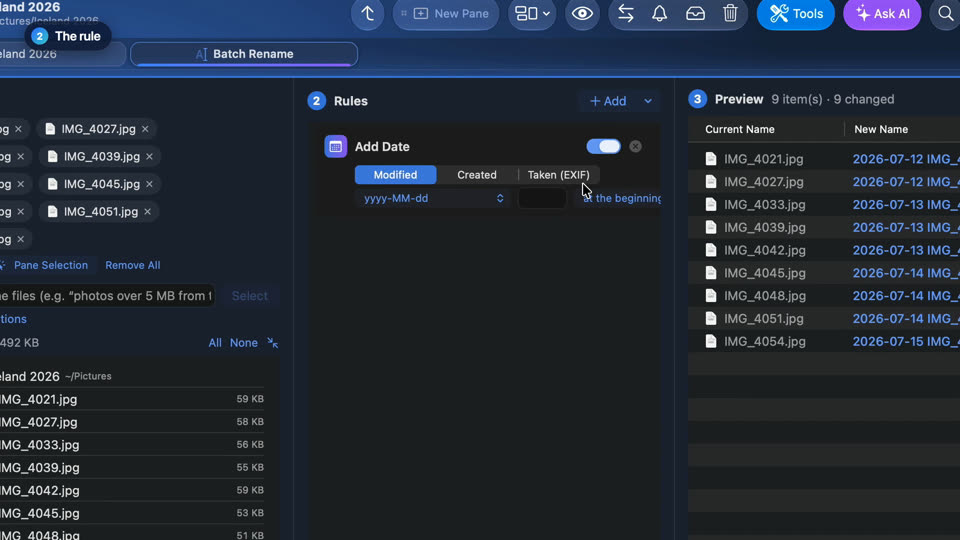
Rename photos by the date they were taken
Select photos, right-click, Batch Rename and add the date they were taken: every new name shows before anything changes, and ⌘Z undoes it.
-
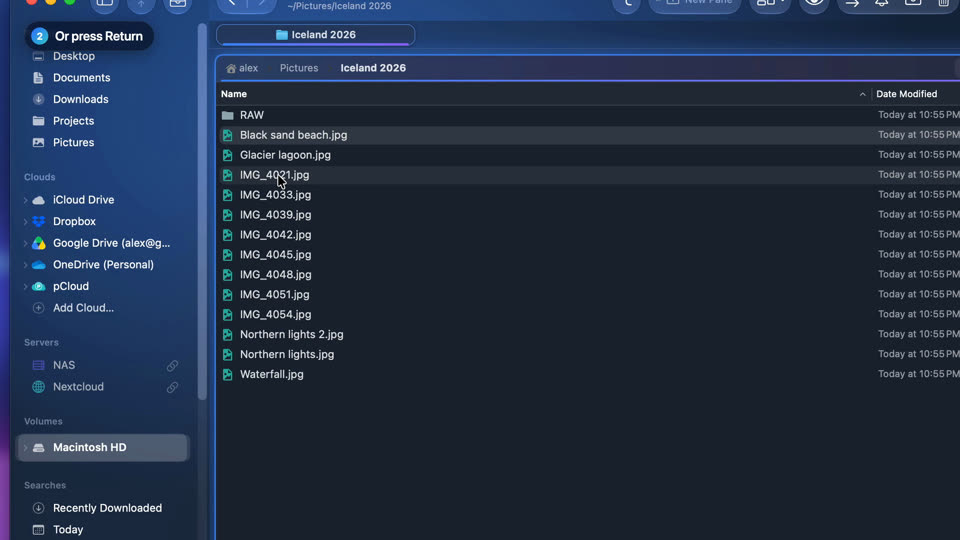
Rename files in place
Rename a file as in the Finder: click its name once more, or press Return. ⌘Z puts the old name back.


-

Rename hundreds of photos at once
Add the date they were taken to every name: each new name shows before anything changes.
-

Rename a file in place
Click the name of the selected file once more, or press Return, and type. ⌘Z puts the old name back.


Questions
Yes: ⌘Z right after, or later from the Operations history, line by line.
Yes, on any files and folders Folia Files can reach, including network disks.
Keep reading
Tools
Duplicates, PDF, compare, automatic rules, photo and video actions, card import, archives.
An A Better Finder Rename alternative
Batch rename with photo dates and a preview, inside a full file manager.
The apps it replaces
What Folia Files covers of eight specialist apps — and what they still do better.

See for yourself, free for 7 days
Every feature, no account, no credit card. Then $49.99, once, every future update included — no subscription.