
Videos
Watch Folia Files at work
Tutorials of about a minute and shorts of twenty seconds, filmed in the real app on a Mac: what each feature does, and how to use it.
7 days free with every feature, no account, no card. Then $49.99 once for up to 3 Macs, every future update included — no subscription.

Tutorials
One feature from start to finish, in about a minute.
-
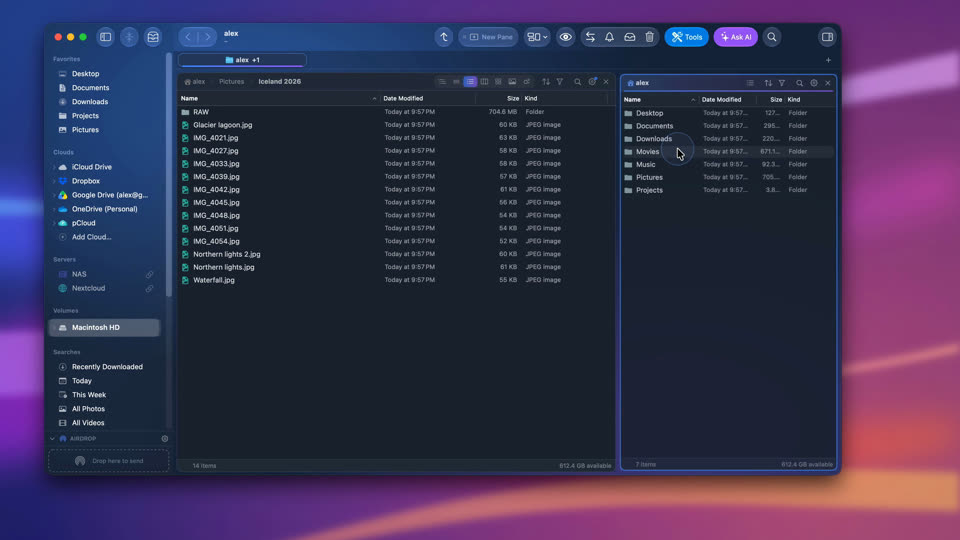
Two folders side by side
Drag New Pane into the window, pick a folder, copy across with F5 (F6 moves), and undo with ⌘Z.
-
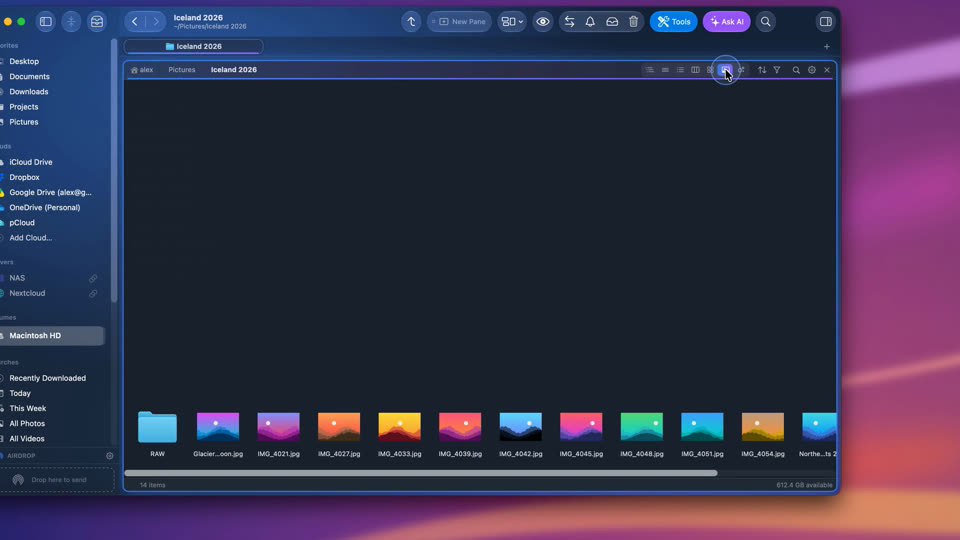
Seven ways to see a folder
Icons, list, detailed list, tree, columns, gallery and sizes as bubbles: switch from the pane's header, and keep a view for a folder from its gear.
-
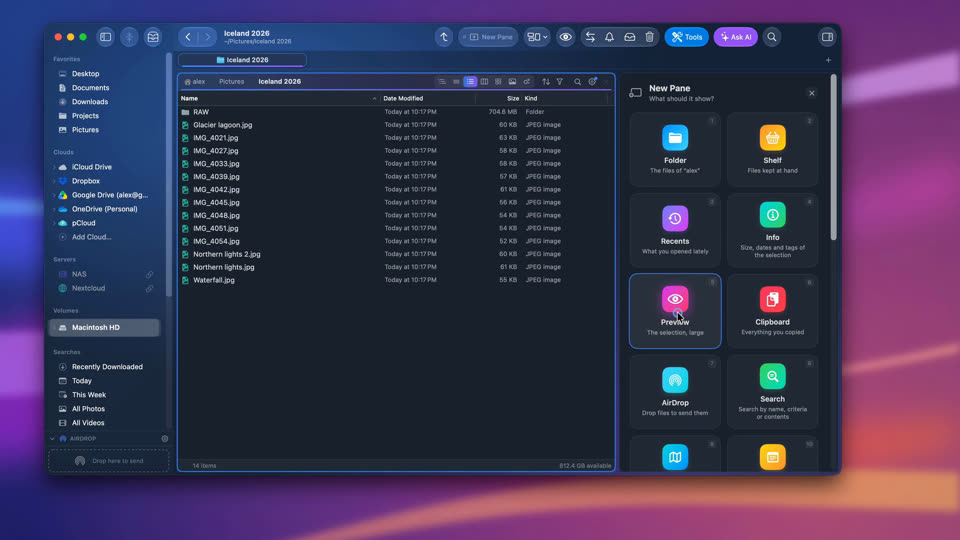
A preview beside your folder
Add a Preview pane and go through photos, PDFs, videos and code with the arrow keys, without opening an app.
-
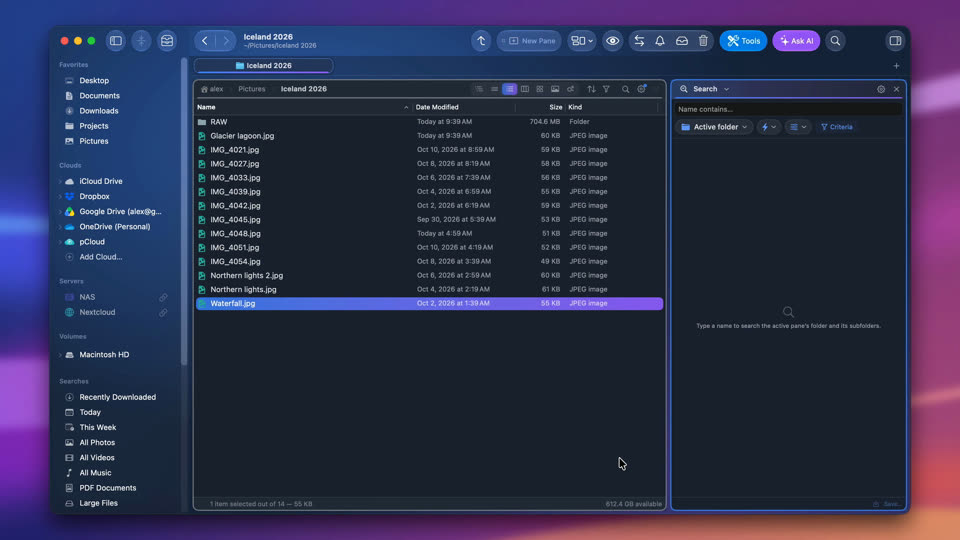
Every module, one by one
Where modules go — the right sidebar or a pane of their own — then each module in turn, in the order of the Modules menu.
-
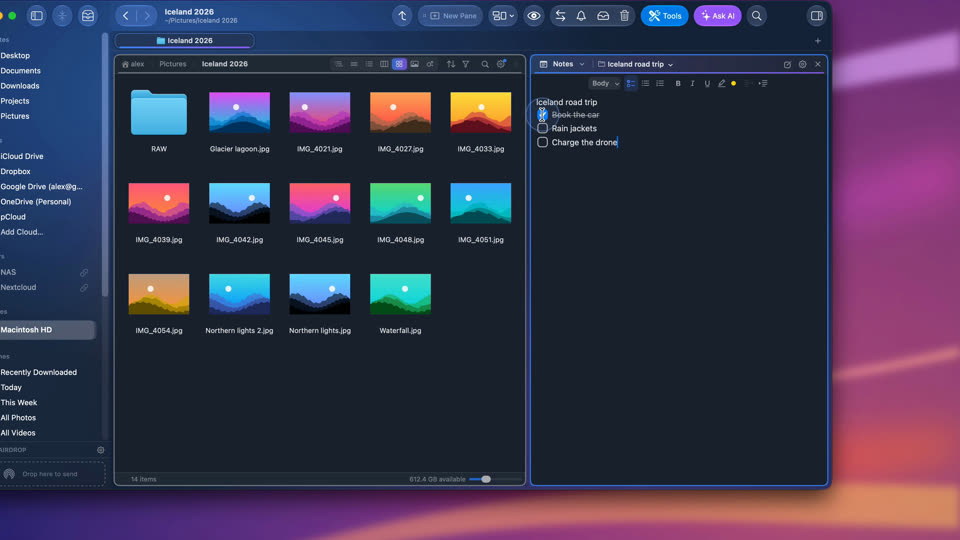
A note for every folder
The Notes module keeps a note for each folder — titles, checklists, highlights. It shows up when you open the folder and saves itself as you type.
-
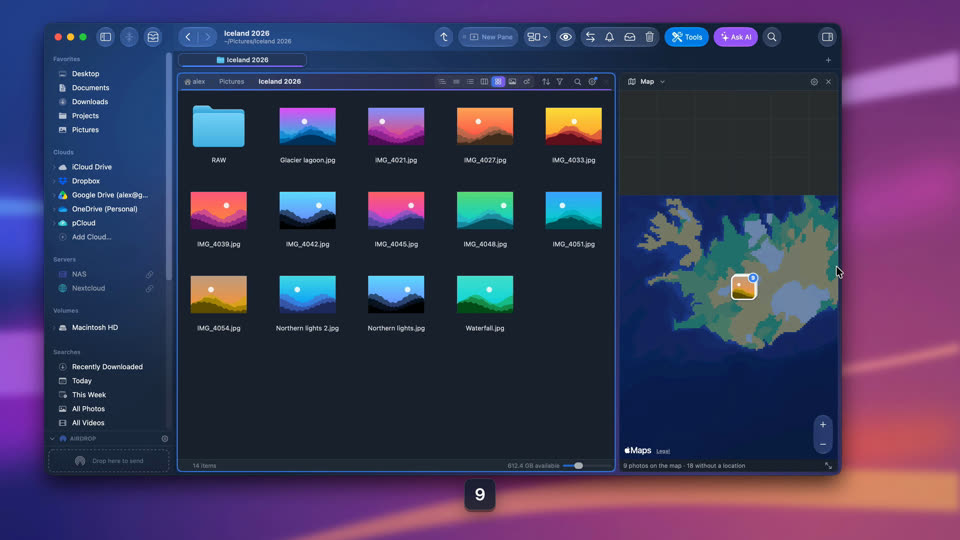
Your photos on a map
A Map pane beside a folder of photos shows every photo that has a location; a click selects it in the folder.
-
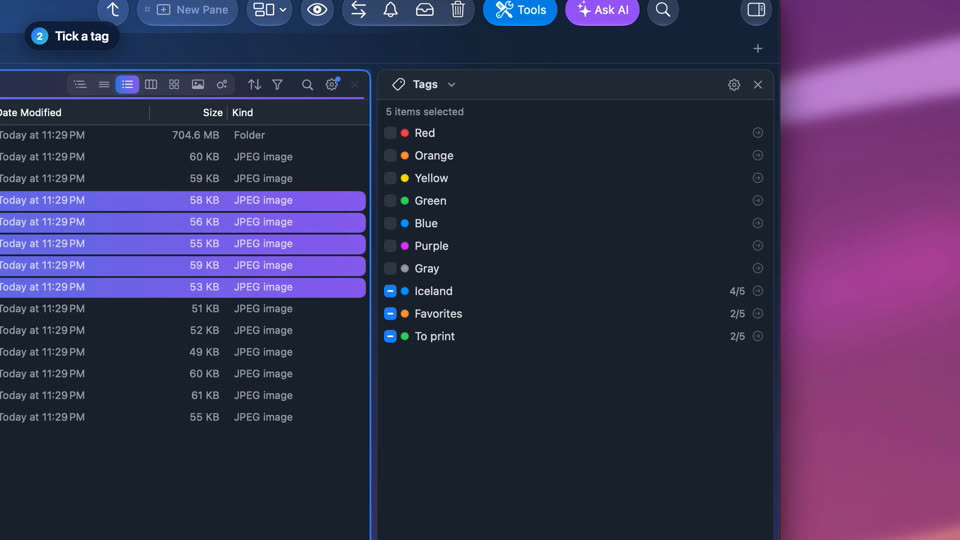
Tag files in one click
Select files and tick tags in the Tags module: they all get them at once. They're the Finder's own tags, so they show up there too.
-
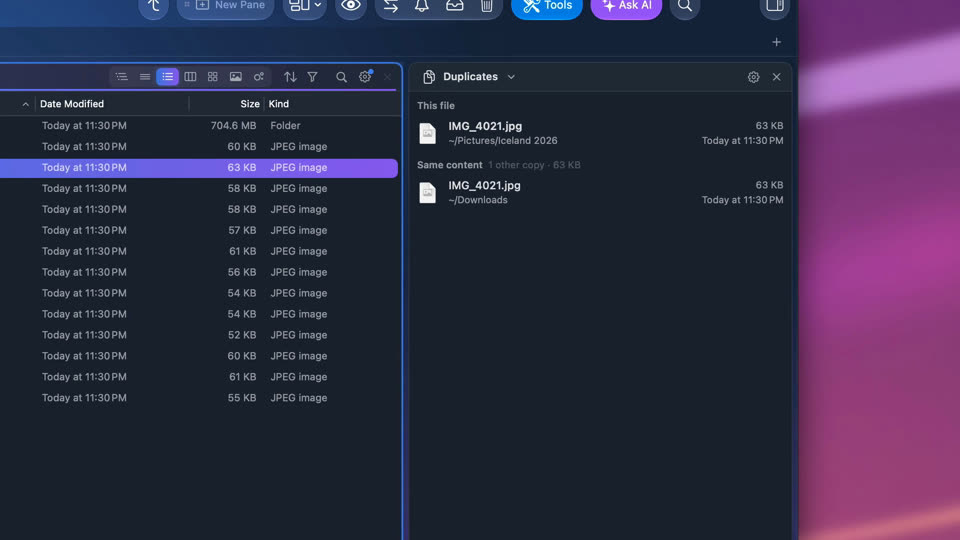
Find every copy of a file
The Duplicates module lists the other copies of the file you select, compared by content, wherever they are in your folders.
-
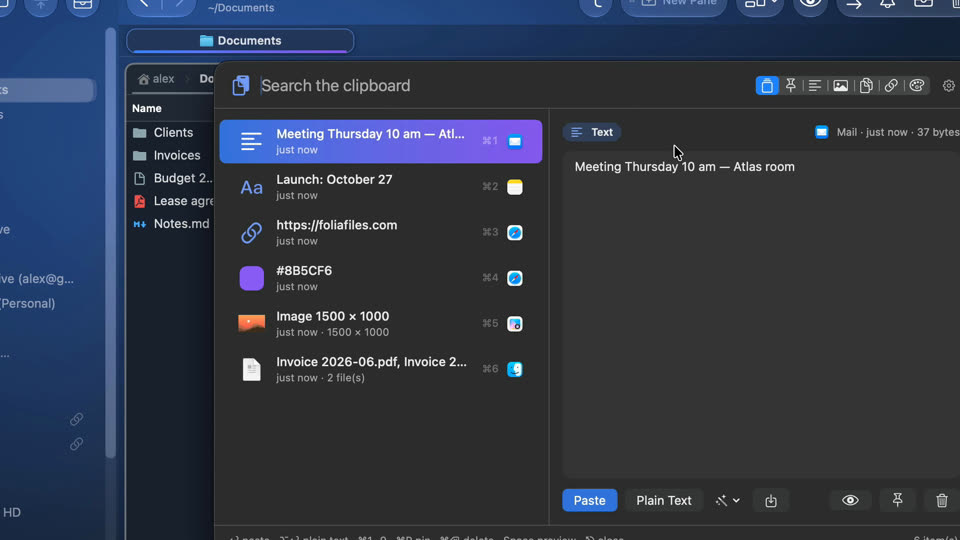
Clipboard history
Press ⌃⌥V in any app: everything you copied is there. Type a few letters, press Return, and it's pasted where you were.
-
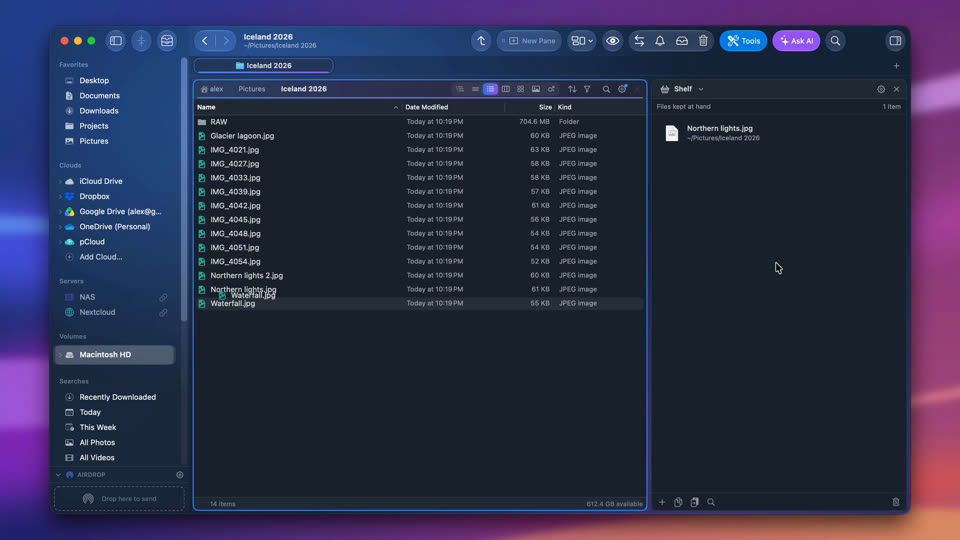
The Shelf: files at hand
Drop files on the Shelf while you move from folder to folder, then drag them where they belong.
-
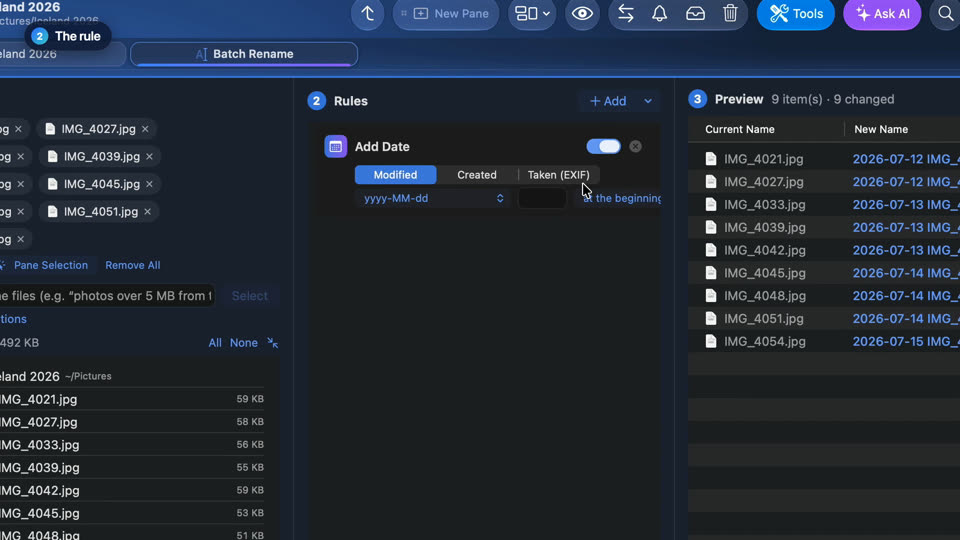
Rename photos by the date they were taken
Select photos, right-click, Batch Rename and add the date they were taken: every new name shows before anything changes, and ⌘Z undoes it.
-
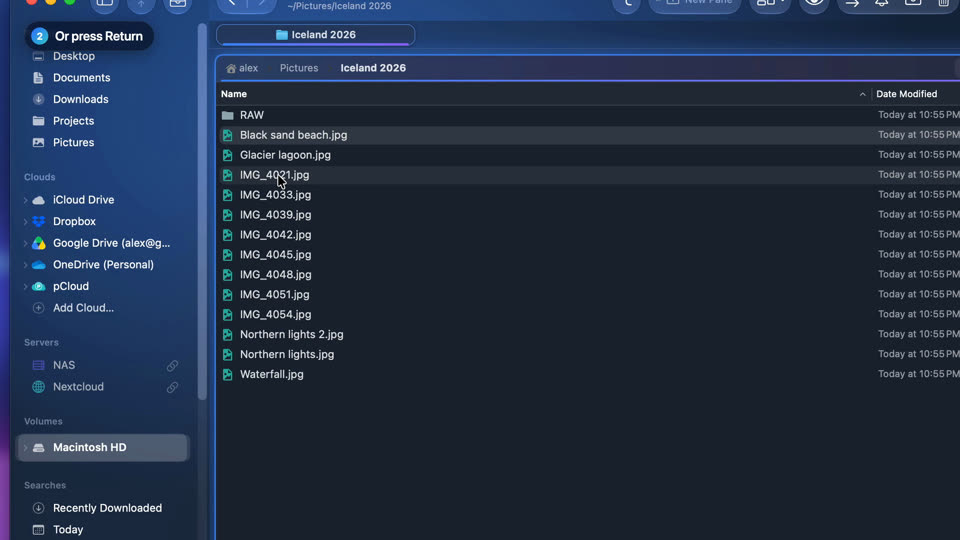
Rename files in place
Rename a file as in the Finder: click its name once more, or press Return. ⌘Z puts the old name back.
-
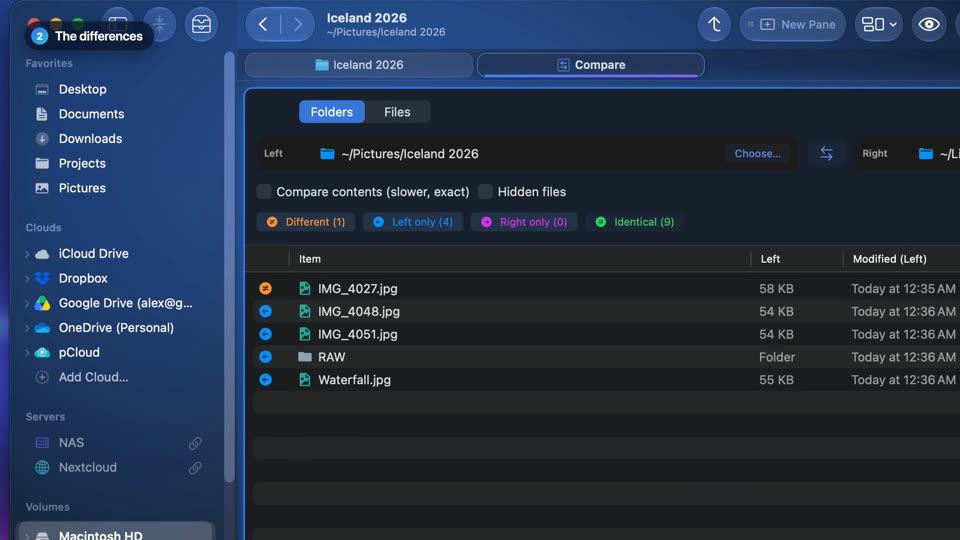
Compare two folders
The Compare tool shows what is only on one side and what changed between two folders, then copies what's missing across.
-
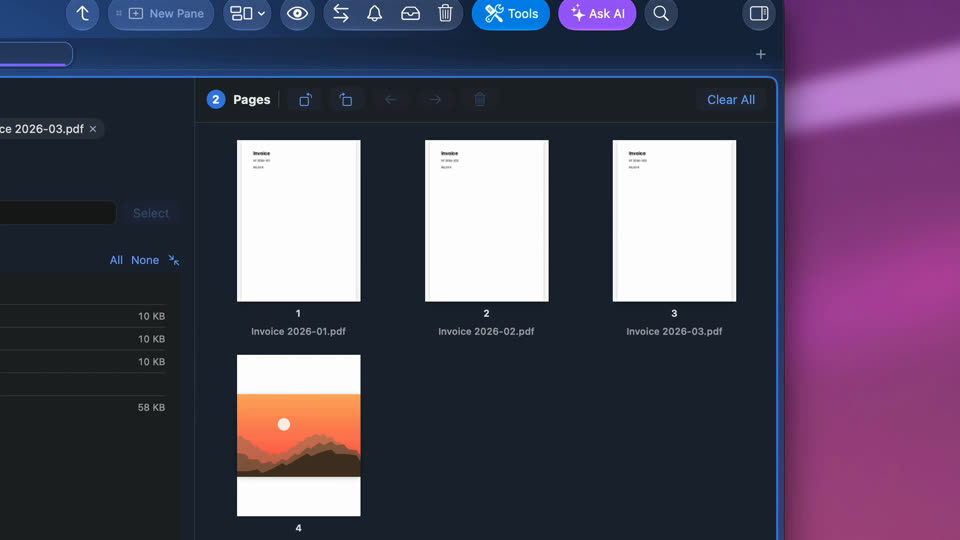
Merge PDFs and photos into one PDF
Select PDFs and photos, open the PDF tool, put the pages in order and save them as one PDF.
-
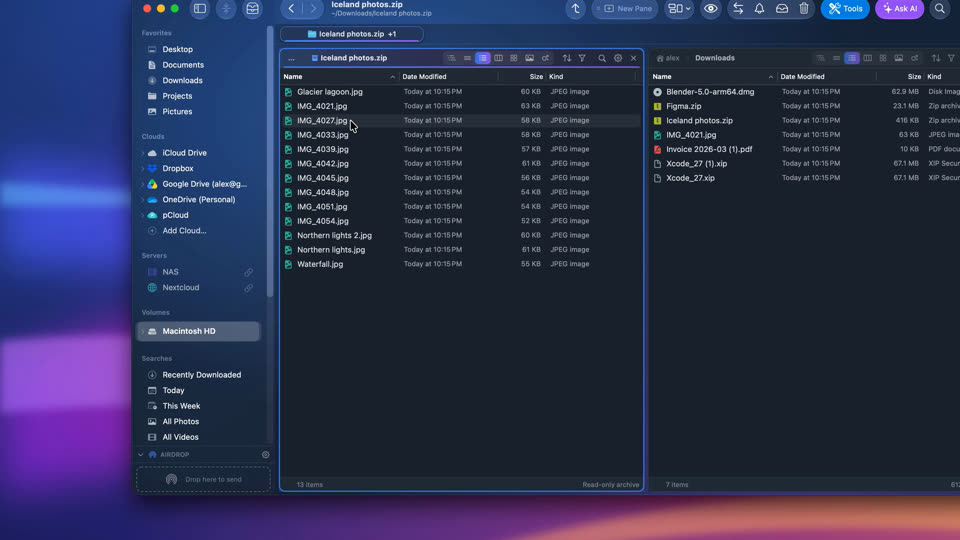
Open a ZIP like a folder
Browse a ZIP like any folder and copy out only what you need with F5; the archive itself never changes.
-
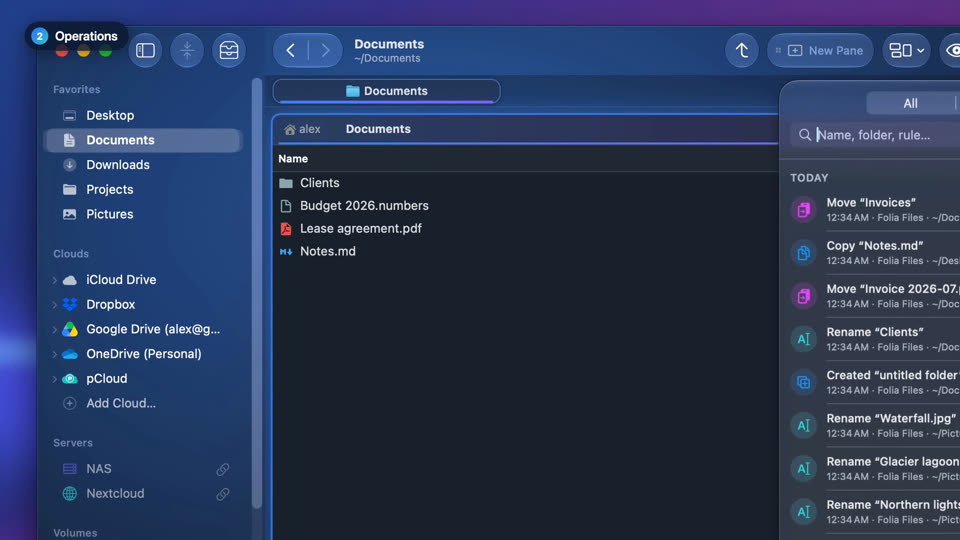
Undo a move, a copy or a rename
Every copy, move, rename and trip to the Trash goes into Operations, where any of them can be undone, even later.
-
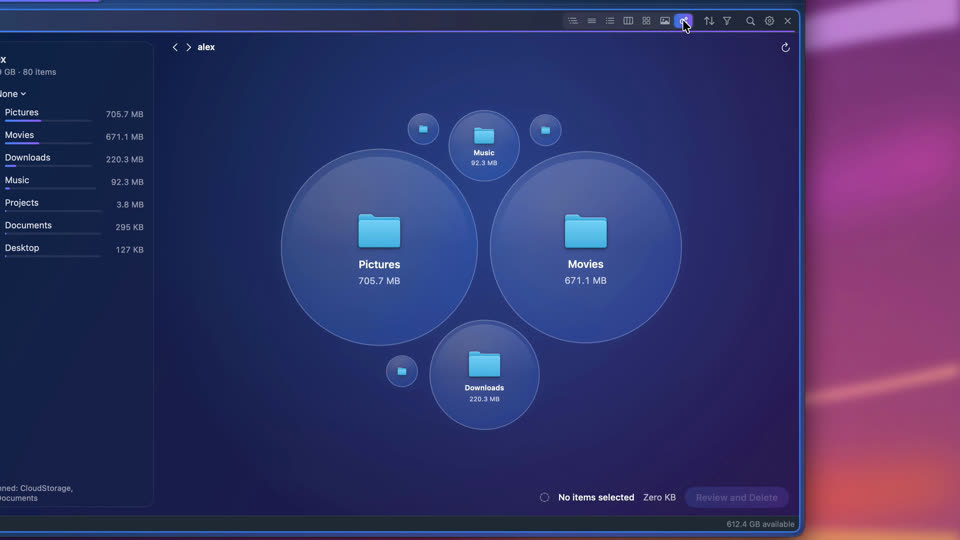
See what's taking space
Any folder by size, as bubbles: the biggest stand out, a click looks inside, and what you don't need goes to the Trash.
-
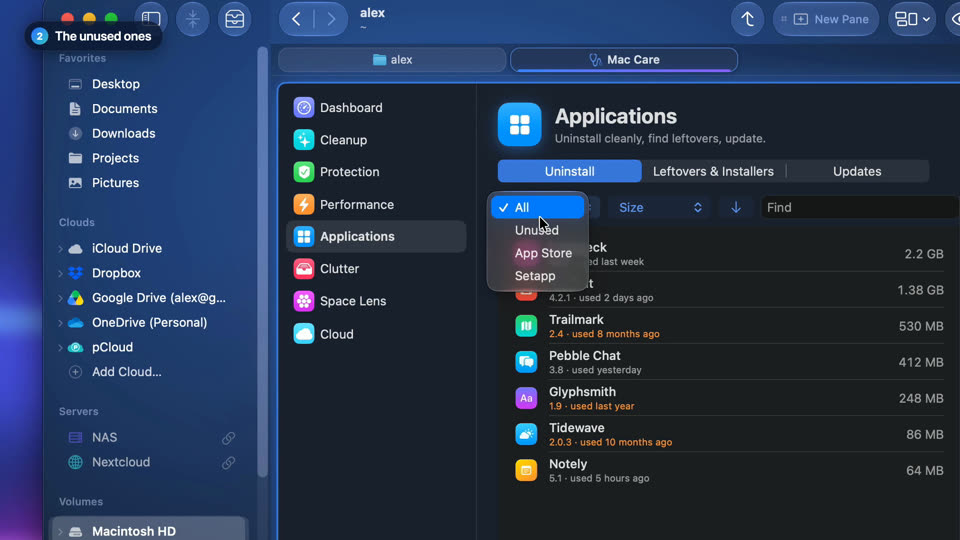
Uninstall the apps you never use
Mac Care lists every app with the space it really takes and the ones you haven't opened in six months, then uninstalls them with their leftovers.


Shorts
One thing in twenty seconds, made for your phone.
-
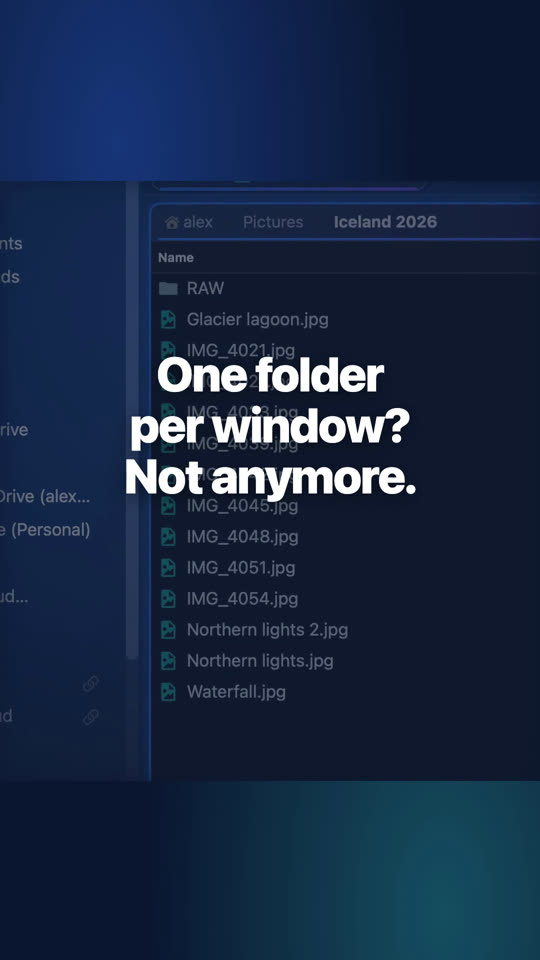
Two folders side by side
Drag New Pane to the edge of the window, pick a folder, and press F5 to copy across. ⌘Z undoes it.
-
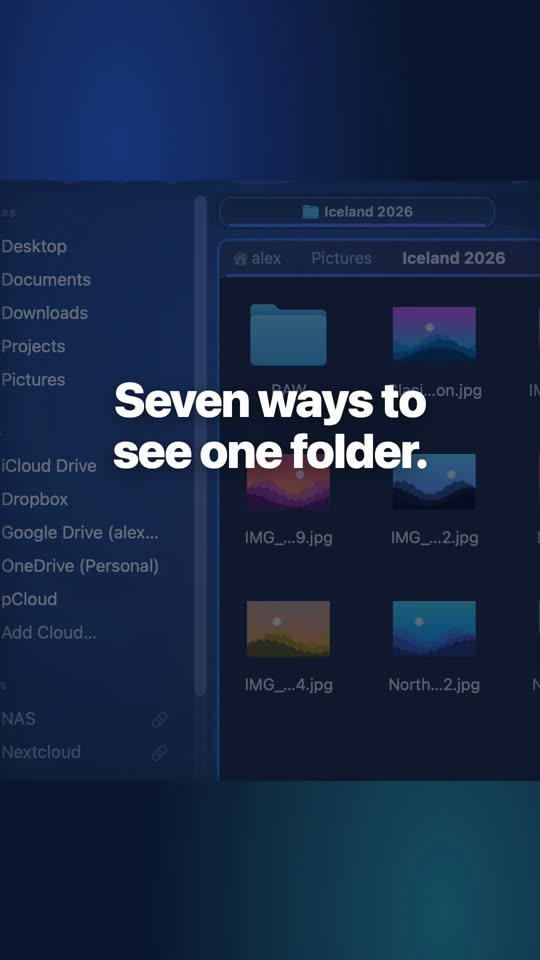
Seven ways to look at a folder
List, details, tree, columns, gallery, sizes or icons: each pane has its own view, right in its header.
-
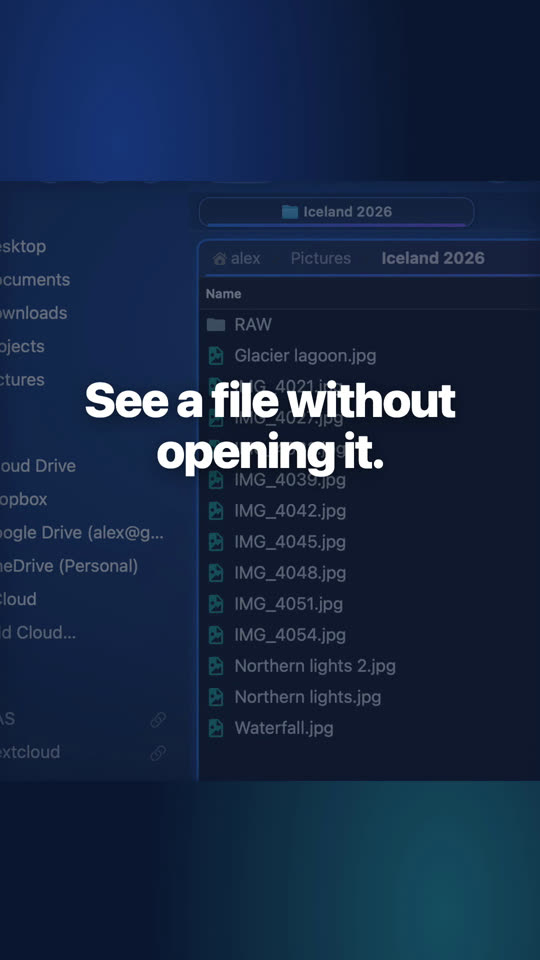
Preview your files beside the folder
Drag New Pane to the edge of the window and choose Preview: every file you select shows in large.
-
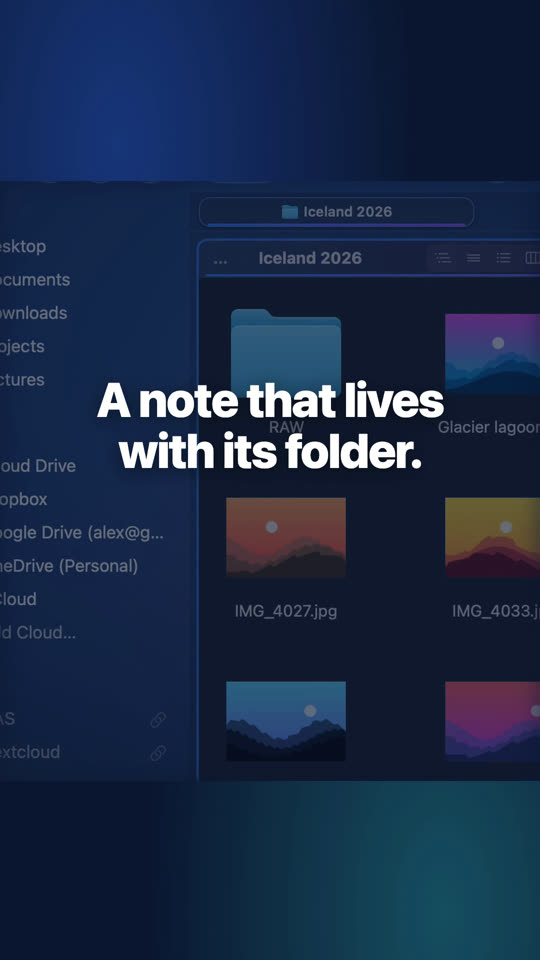
A note for every folder
Checklists, titles, highlights: the note comes and goes with its folder.
-
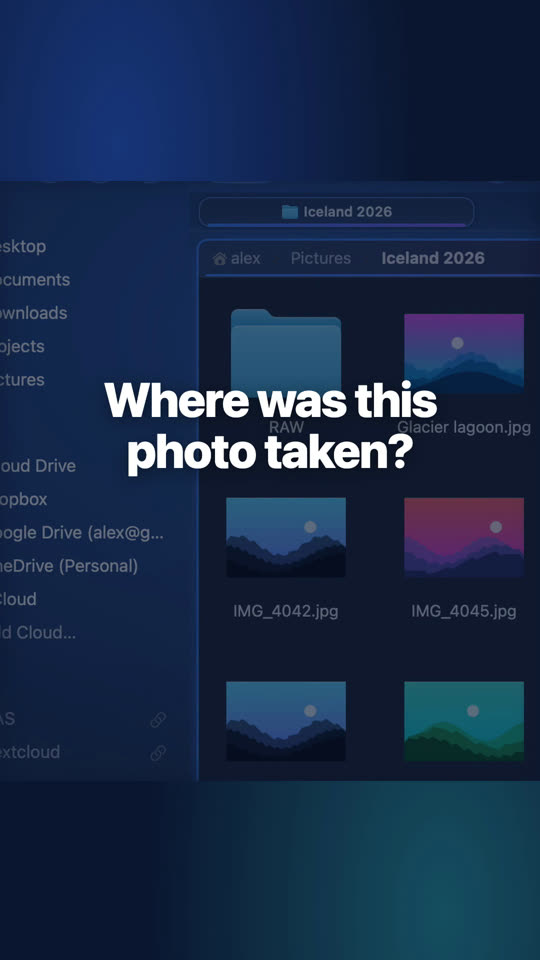
See where your photos were taken
A Map pane next to a folder of photos: every photo with a location shows up. Click one to select it.
-
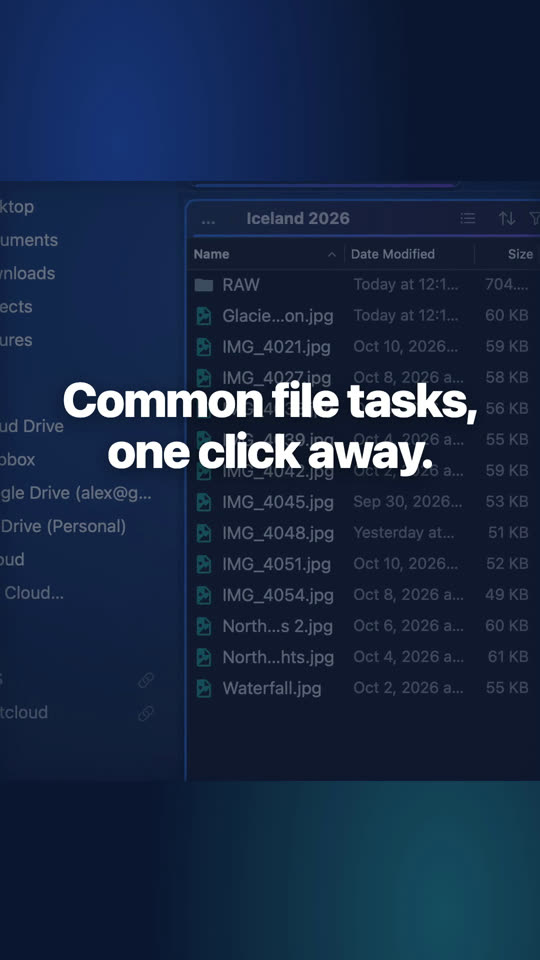
One-click actions for your files
Compress, convert to JPEG, resize, make a PDF: one tile of the Quick Actions module.
-
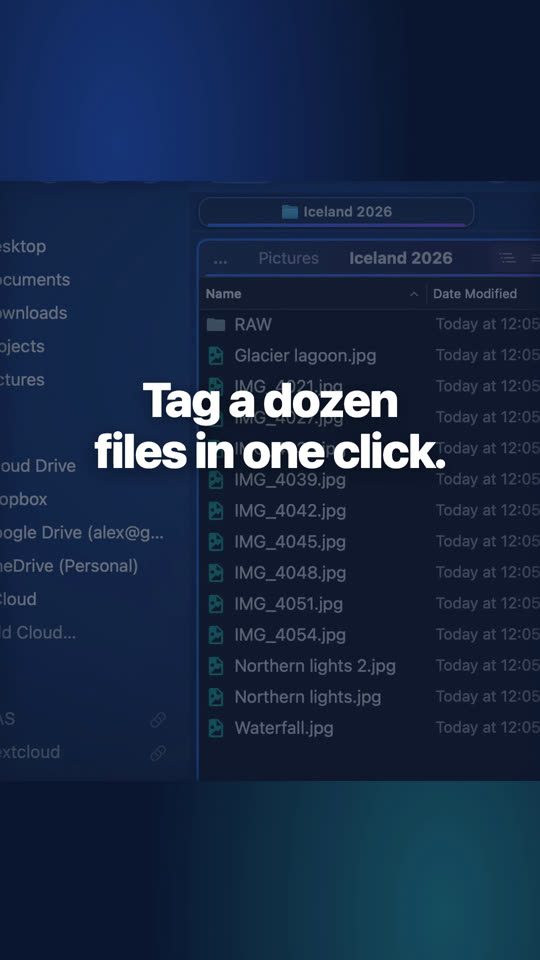
Tag many files at once
Tick a tag in the Tags module and every selected file gets it. The Finder's own tags.
-
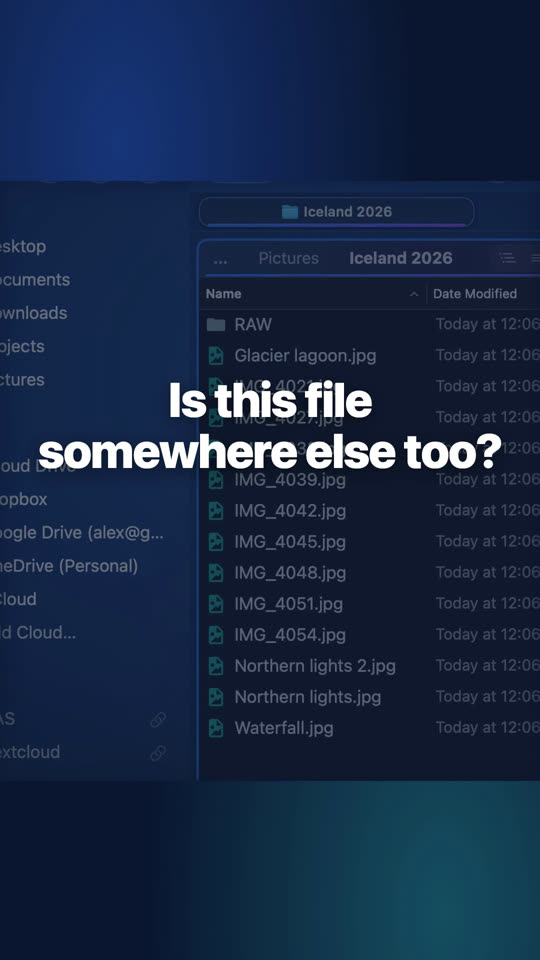
Find every copy of a file
Select a file: the Duplicates module lists its other copies, compared by content.
-
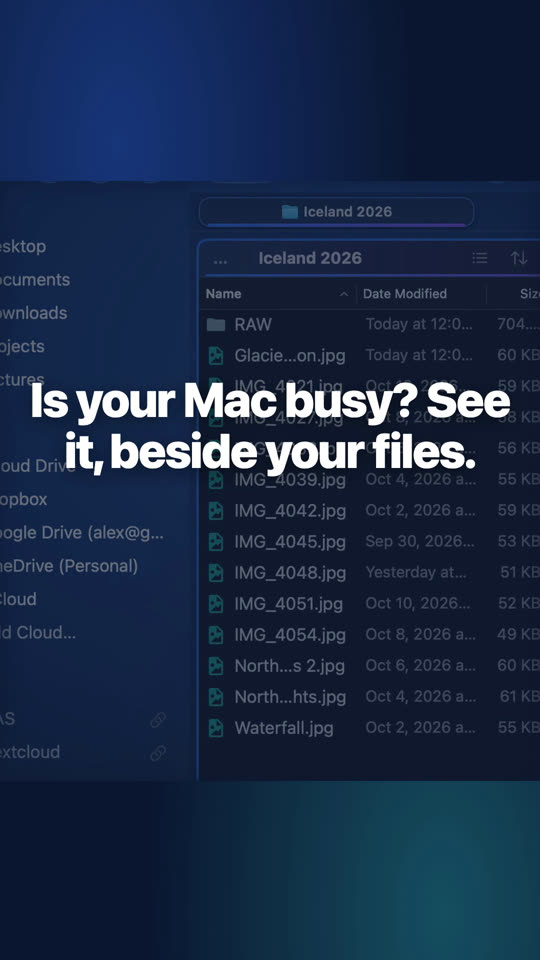
Your Mac's activity beside your files
The Activity module draws the processor, memory, network and disks, live.
-
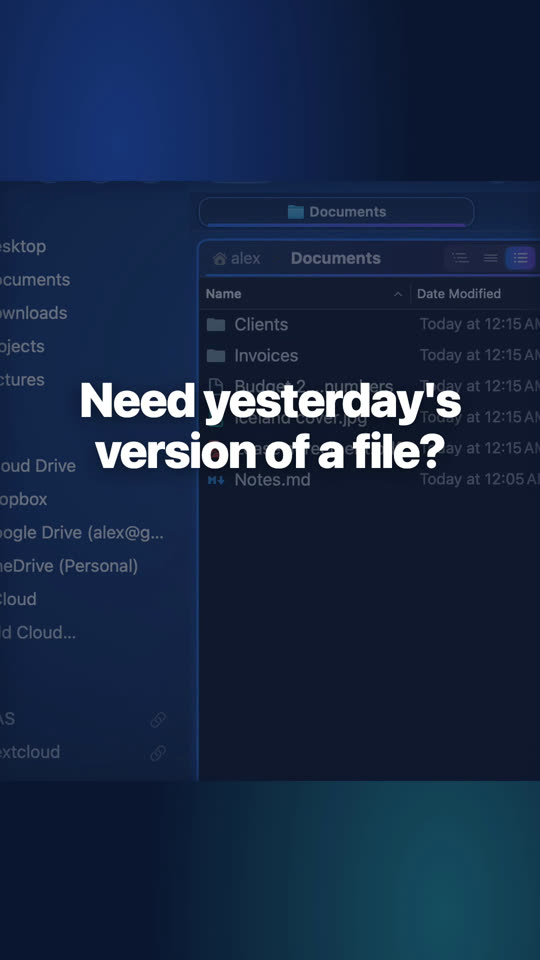
Get an earlier version of a file back
Select a document: the Versions module lists its earlier versions from macOS, your backups and Time Machine.
-
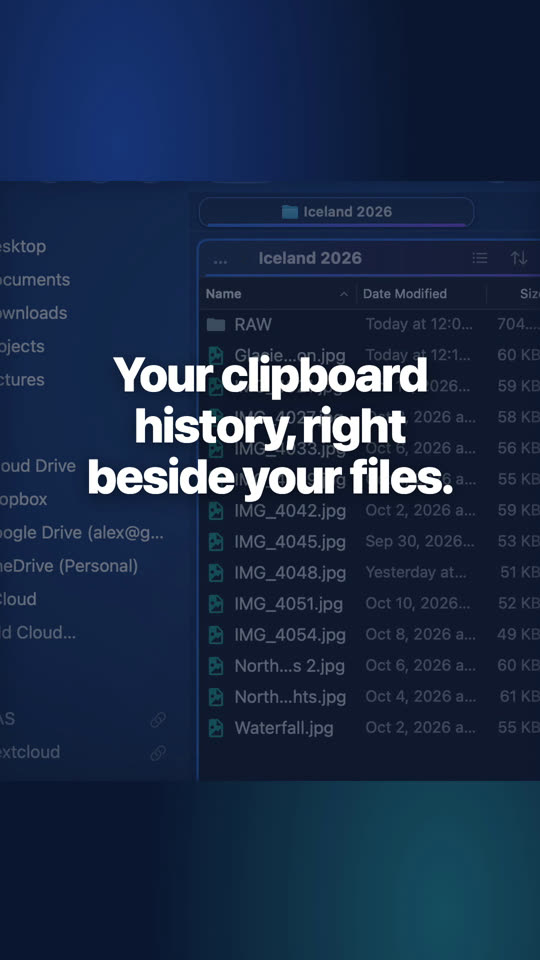
Clipboard history beside your files
The Clipboard module keeps the text, images, links, colors and files you copied. Passwords are never kept.
-
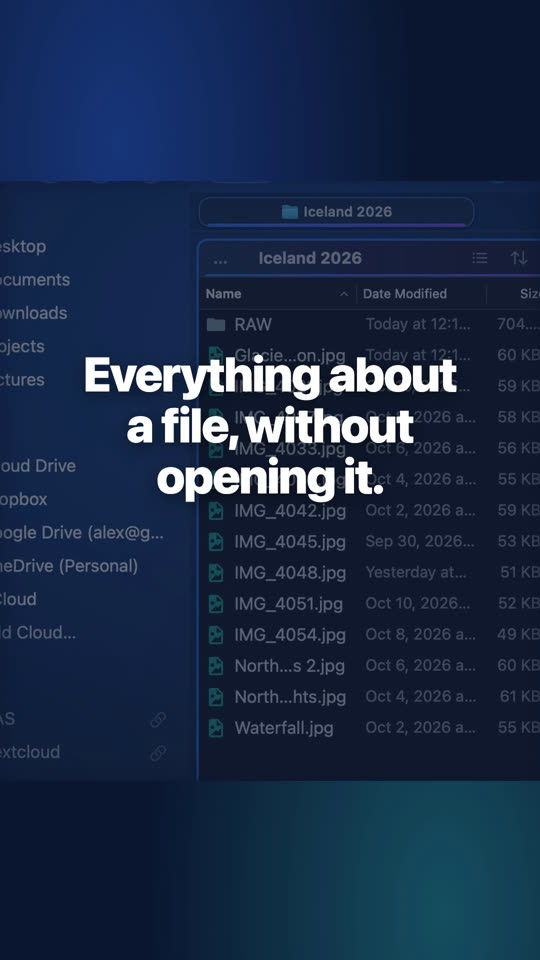
Everything about a file, beside it
The Info module shows size, dates, kind and tags, and follows the selection.
-
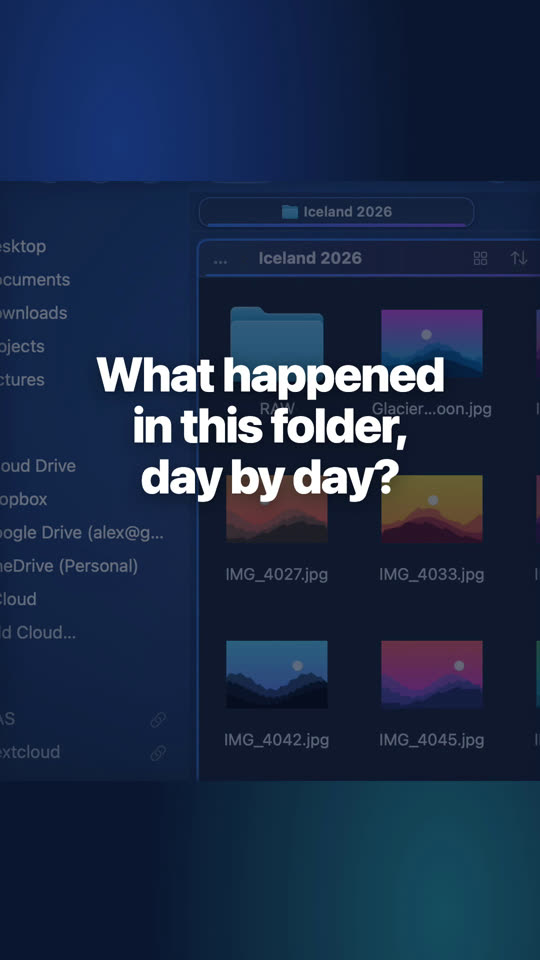
See a folder day by day
The Timeline module lays a folder out by day, with a calendar of the days that have files.
-
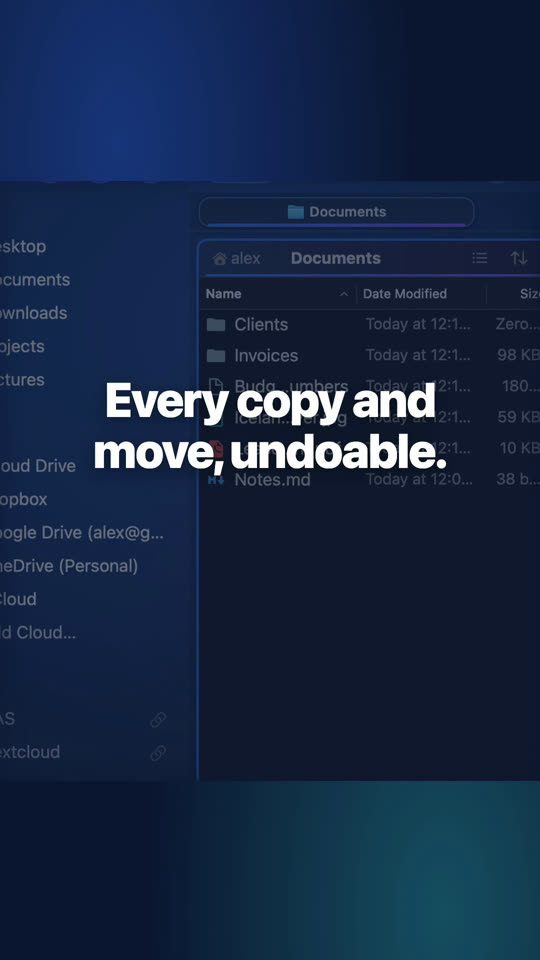
Undo any file operation
Every copy, move and rename goes into the Operations module: undo it now or tomorrow.
-
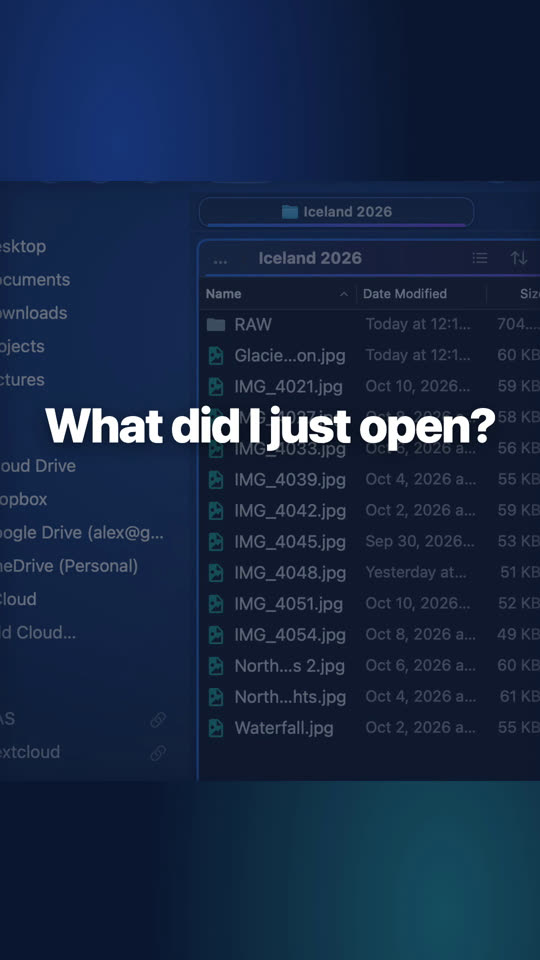
The files you just opened
The Recents module lists what you opened lately, newest first, wherever it is.
-

What just arrived in Downloads
The Arrivals module shows the newest files in your Downloads as they arrive.
-
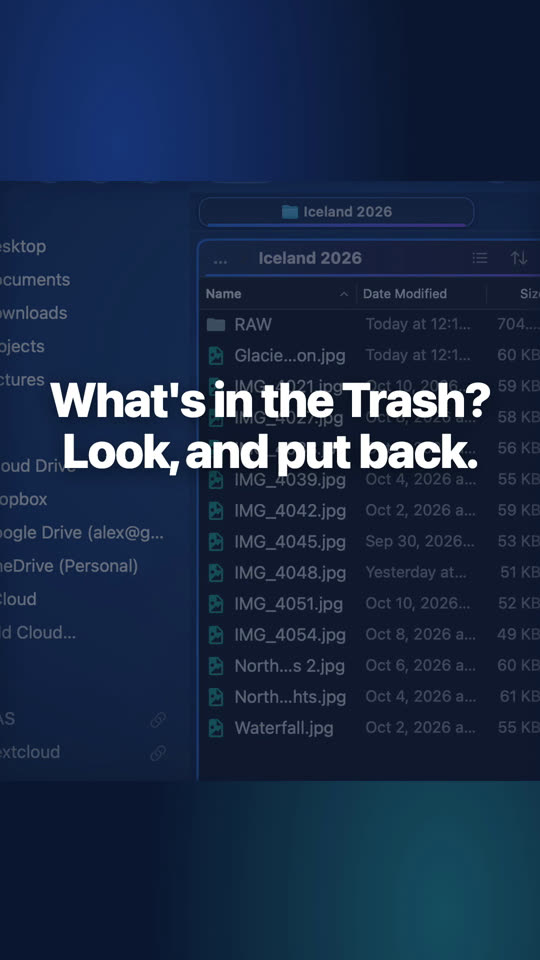
The Trash, beside your files
The Trash module lists what's in the Trash, newest first, right beside your files.
-
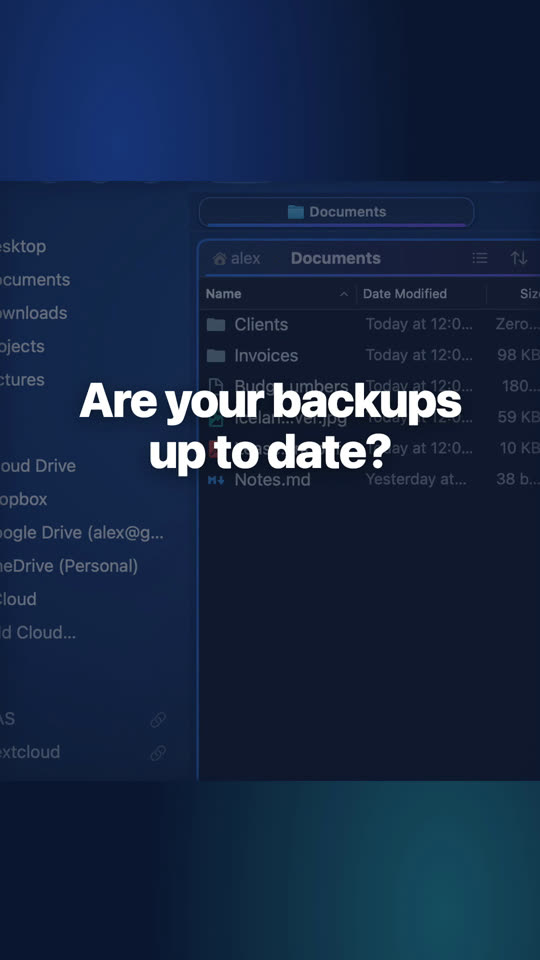
Your backups at a glance
The Backups module shows each backup and when it last ran.
-
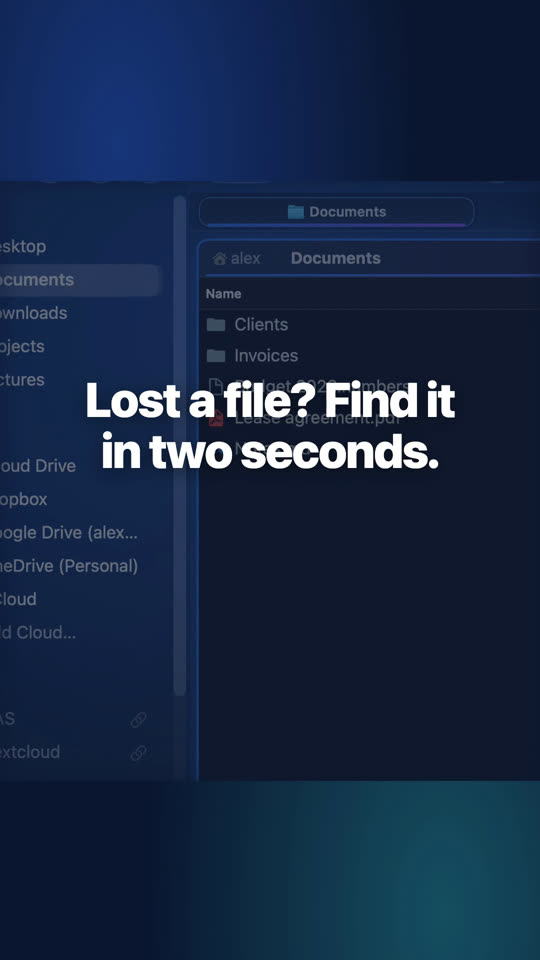
Find any file in seconds
⌘F searches the folder and every folder inside it; ⌘P jumps to any file or folder on the Mac.
-
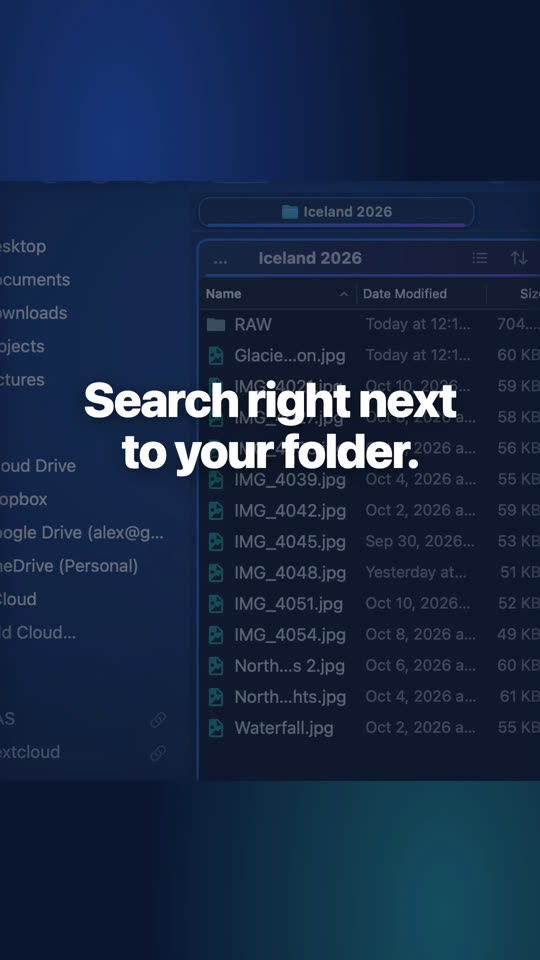
Search beside your folder
The Search module sits beside the folder: results as you type, criteria when you need them.
-
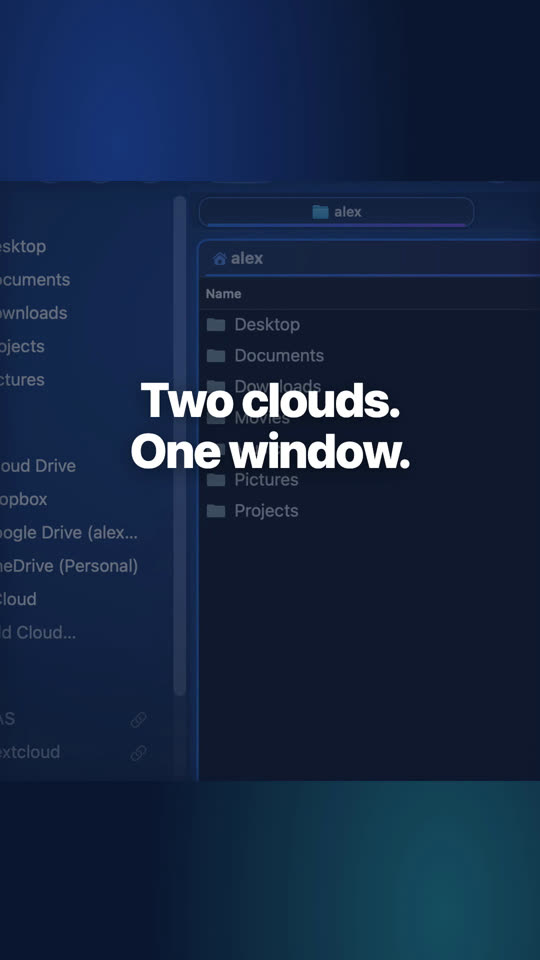
Dropbox and pCloud side by side
Your clouds sit in the sidebar like any folder: open two side by side and copy from one to the other with F5.
-
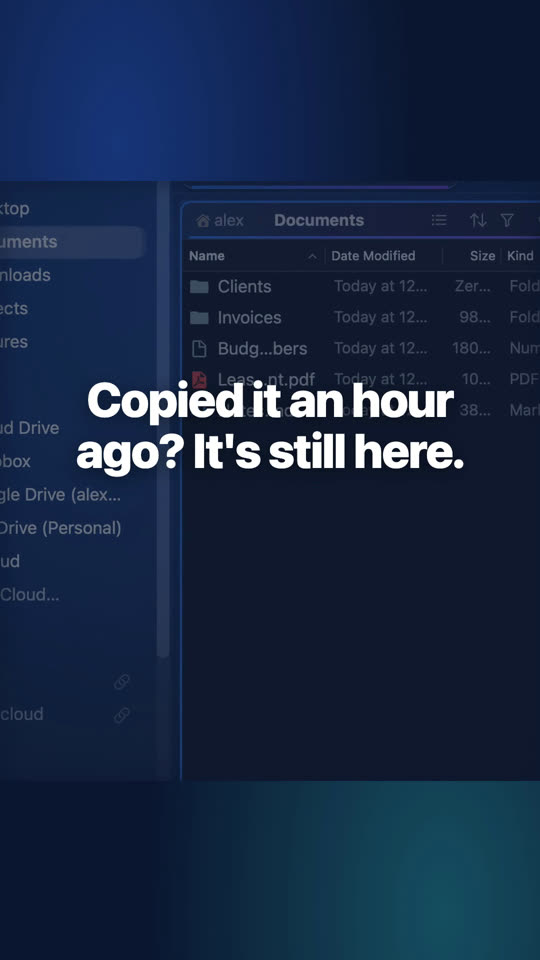
Clipboard history with ⌃⌥V
Everything you copied, in any app: type a few letters, press Return, and it's pasted.
-
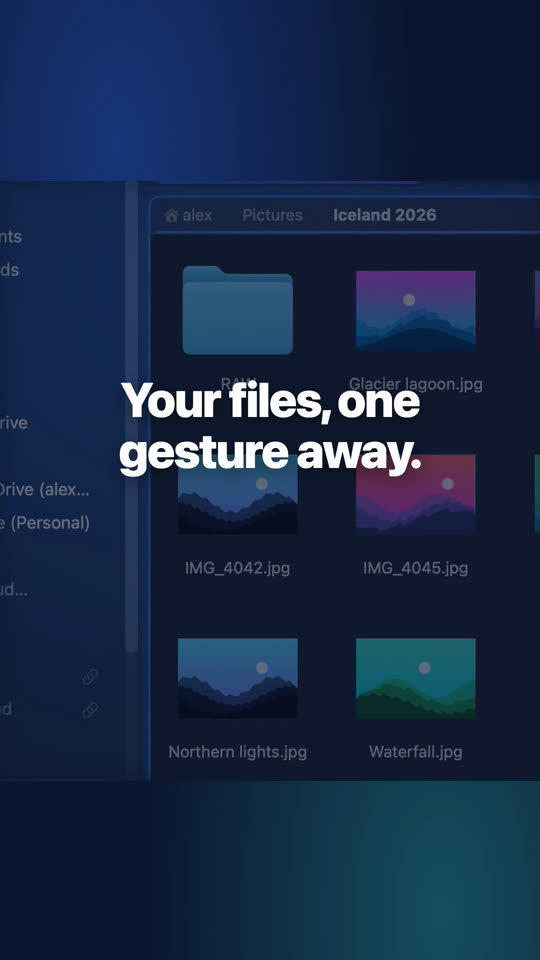
A drawer of files at the edge of the screen
It slides out over any app: drop files on its Shelf to keep them at hand, with your favorites and recent files.
-
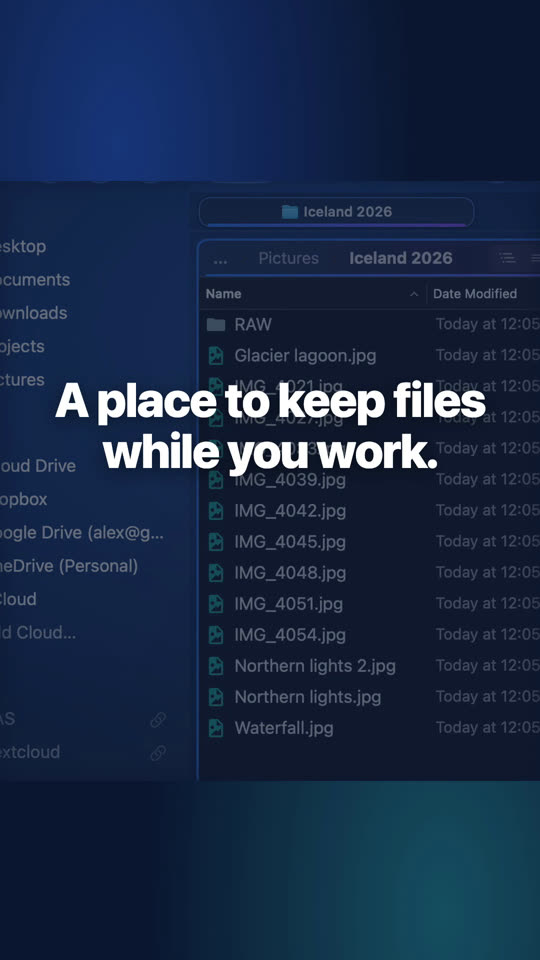
Keep files at hand
Drag files onto the Shelf, go to another folder, and drop them there. Nothing moves until you do.
-
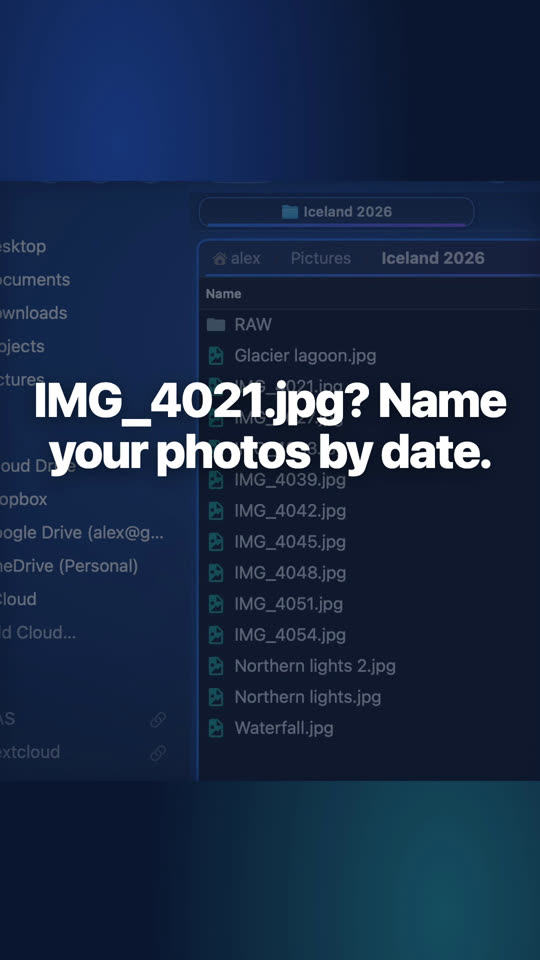
Rename hundreds of photos at once
Add the date they were taken to every name: each new name shows before anything changes.
-
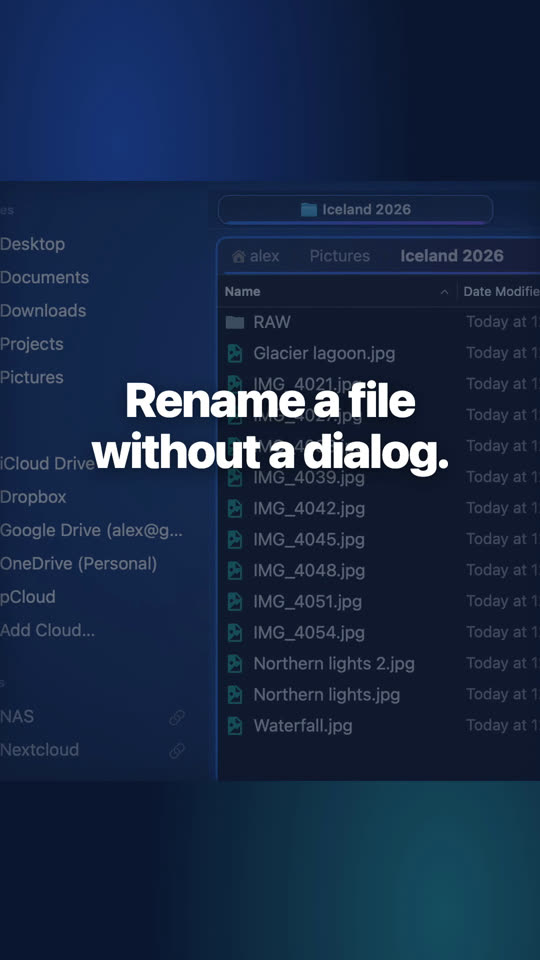
Rename a file in place
Click the name of the selected file once more, or press Return, and type. ⌘Z puts the old name back.
-
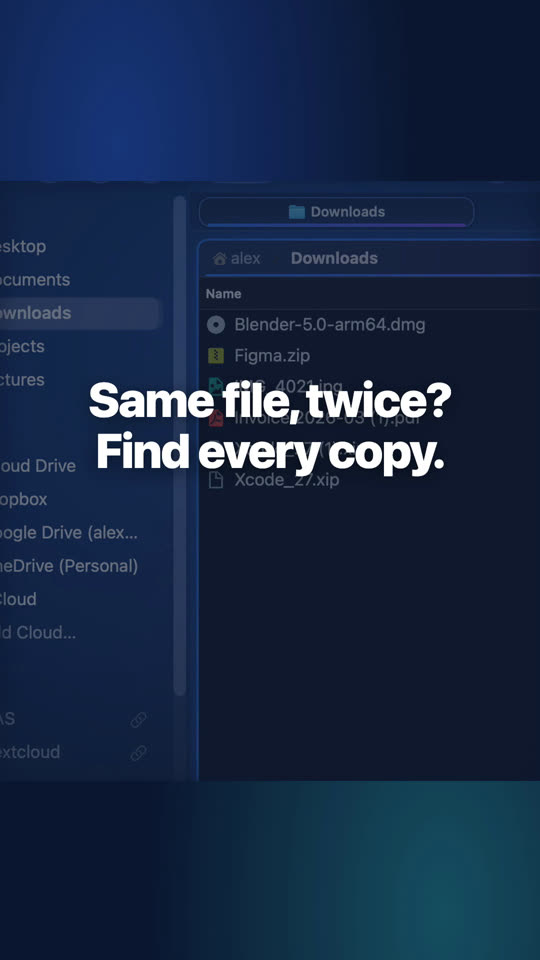
Find duplicate files
The Duplicates tool groups every copy by content, keeps the one you choose and sends the others to the Trash.
-
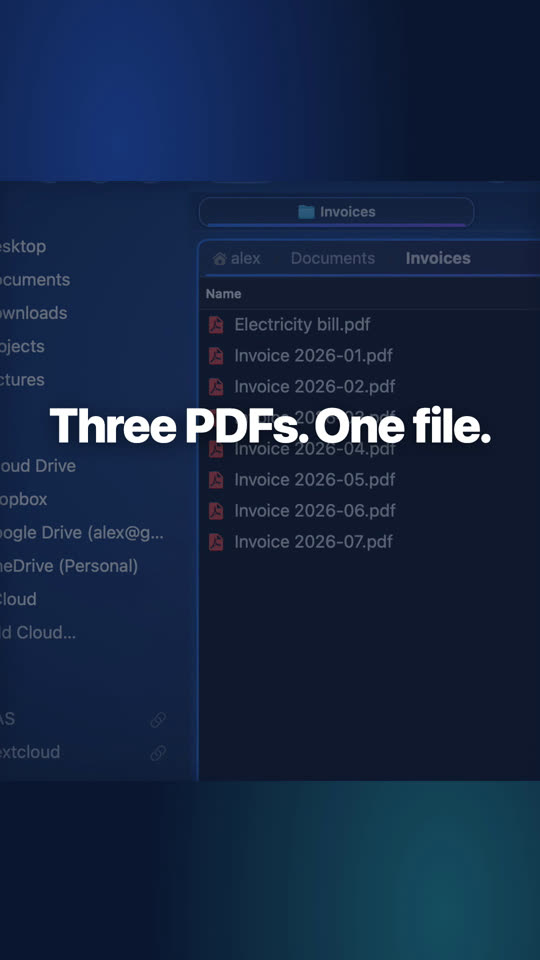
Merge PDFs and photos into one PDF
Put the pages in order in the PDF tool and save them as one PDF.
-
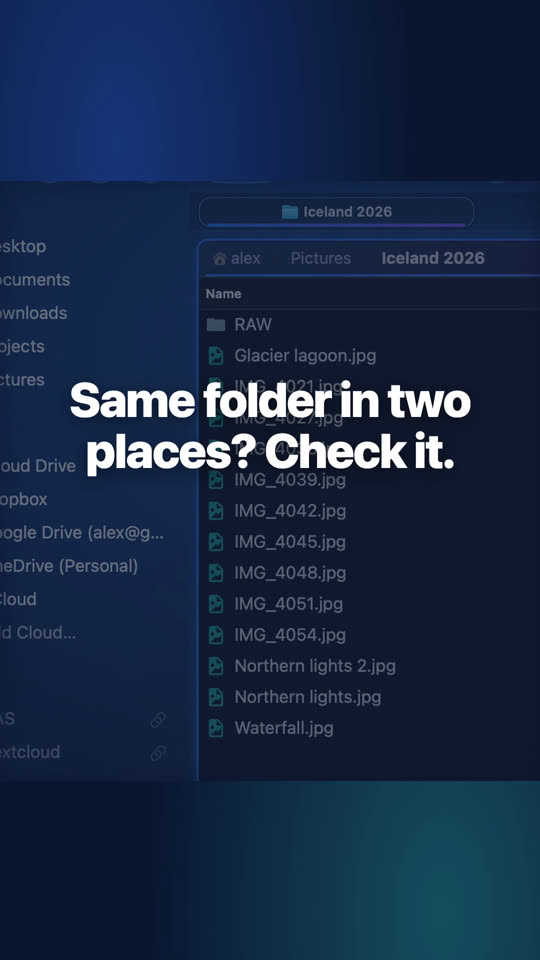
Compare two folders
What is only on one side, what changed, and what's missing copied across.
-
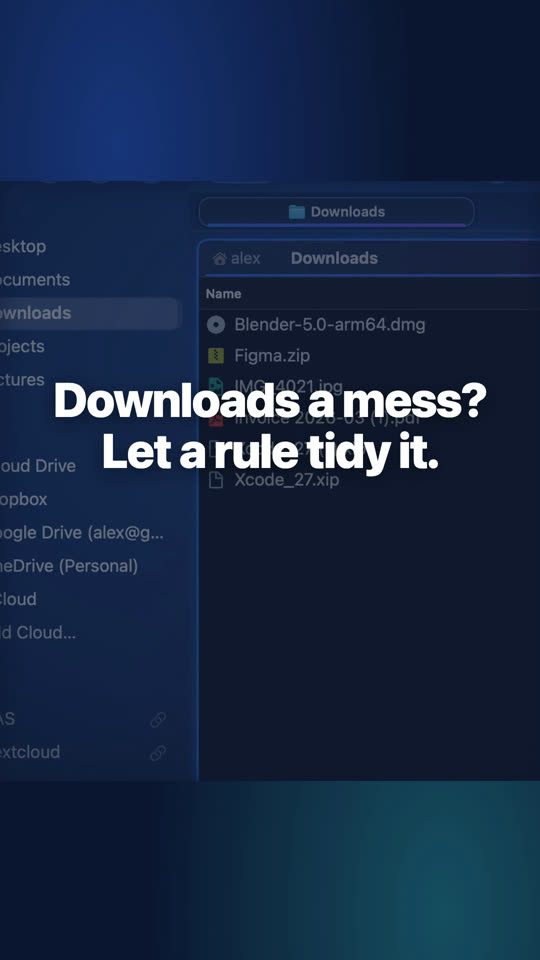
Sort your Downloads automatically
A rule watches Downloads and files invoices into Documents, Invoices, by year, as soon as they arrive.
-

Open a ZIP without extracting it
Double-click a ZIP and it opens like a folder. Copy out only what you need with F5.
-
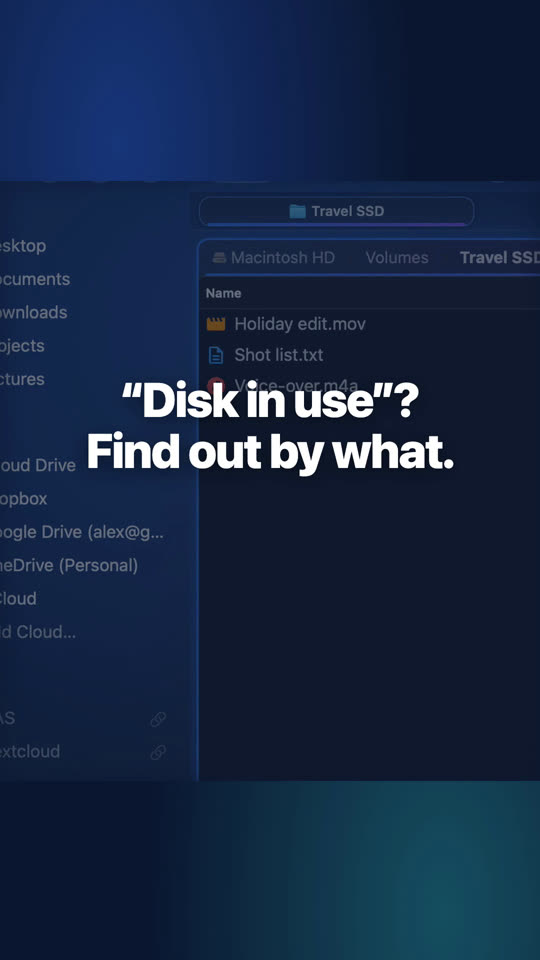
Eject a disk that says it's in use
Folia Files tells you which app is holding the disk. Close it, click Try Again, done.
-
Undo a file move
Every copy, move, rename and trip to the Trash goes into Operations. Click Undo, even later, and things go back.
-
See what's taking space
Every folder and file as a bubble as big as the space it takes. Click one to look inside.
-
Uninstall the apps you never use
Every app with the space it really takes; the ones you haven't opened in six months go to the Trash with their leftovers.
-
A terminal under any folder
⌥⌘T opens a terminal under the pane, in its folder. What you do there shows in the pane at once.
Website edition
-
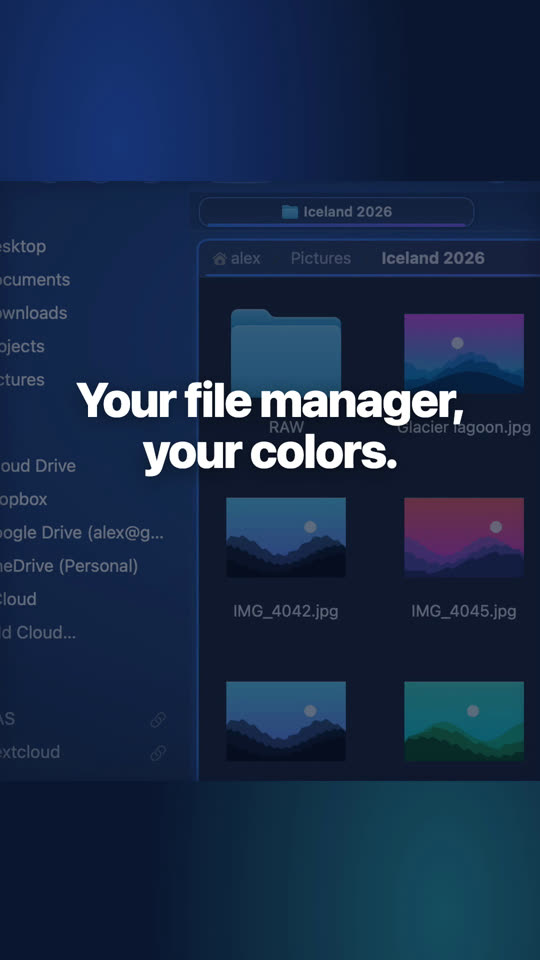
Make your file manager look like you
Ocean, dusk, forest, lavender… or your own colors, fonts, glass and folder backgrounds.


The videos are in English; the tutorials have subtitles that YouTube can translate. The player comes from YouTube (youtube-nocookie.com) and loads only when you press play. All our videos on YouTube

See for yourself, free for 7 days
Every feature, no account, no credit card. Then $49.99, once, every future update included — no subscription.