
Panes, tabs and scenes
All your folders, side by side
The Finder shows one folder per window. Folia Files splits its window into as many panes as you need, keeps each arrangement in its own tab, and saves the ones you love as scenes.
- Unlimited panes
- Eight views
- Scenes with ⇧⌘T
7 days free with every feature, no account, no card. Then $49.99 once for up to 3 Macs, every future update included — no subscription.

In short
In Folia Files, drag the “New Pane” button to any edge of the window or of a pane: it splits right there, and you pick what the new pane shows: a folder or a module. Each pane has its own folder and view (list, detailed list, tree, columns, icons, gallery or size bubbles). Drag files from one pane to another, or press F5 to copy and F6 to move the selection to the other pane. Save a tab as a scene and reopen it with ⇧⌘T or ⌃⌘1 to ⌃⌘9. Drag a tab out of the bar to open it in its own window.
Split the window where you want
Drag “New Pane” from the toolbar and drop it on any edge — of the window or of a pane. The window splits there, and a grid asks what the new pane shows: a folder — the one chosen in Settings › Panes, your home folder at first — or a module such as the notes, the activity or the preview. Do it again as often as you like: two panes side by side, three in a column, four in a grid.
Drop a pane's header on another one to swap them. Close a pane and the others take its room. ⌘\ and ⇧⌘\ clone the active pane to the right or below.

Eight views, and a view for each folder
List, detailed list, tree, columns, branches, icons, gallery and size bubbles: a click in the pane's header, or ⌘1 to ⌘8. Sort with folders on top or mixed in, group by kind, date, size, tag or app, choose the icon size and whether hidden files show.
Each pane keeps its view as you browse. Save it for a folder — or for the folder and everything under it — from the pane's gear, and that folder always opens that way. Downloads can stay a list sorted by date, Photos a gallery, Projects a tree.
- Branches: every folder you open as a card beside its parent
- Group by kind, date, size, tag or app
- A filter by file type in each pane
- Hidden files shown in one pane only (⇧⌘.)
- Synced navigation: two panes browse together
- Columns as wide as their names, or as the first one

Copy between panes without thinking
Drag from one pane to the other to copy or move. Or select and press F5 to copy to the other pane, F6 to move there — the way commander-style file managers have always worked. Every operation goes to the history, and ⌘Z undoes it.
F5 copy to the other paneF6 move to the other pane⌘Z undo
Scenes: a tab, saved as it is
Arrange a tab for a job — the client folder, its invoices and the shared drive side by side — and save it as a scene: the layout, the folders, each pane's view. Reopen it from a grid of thumbnails (⇧⌘T) or directly with ⌃⌘1 to ⌃⌘9, in a new tab or in place.
Workspaces go one step further: the whole window, with every tab, its size and its screen, from the Window menu.

Tabs, in any window
⌘T opens a tab with an empty pane: pick a folder or a module in its grid. Drag a tab out of the bar to give it its own window, or drop it on another window to join its tabs — its panes, history and terminals go with it. Every window comes back at the next launch.
The right sidebar, next to your panes
Twenty-one modules in a column you can rearrange — info, preview, the Shelf, recent files, the clipboard history, AirDrop, notes, your photos on a map, live activity, versions, tags, duplicates, a tree of your favorites and disks… — or under the left sidebar if you prefer one column. Any module can also become a pane of its own.
See it in action
-
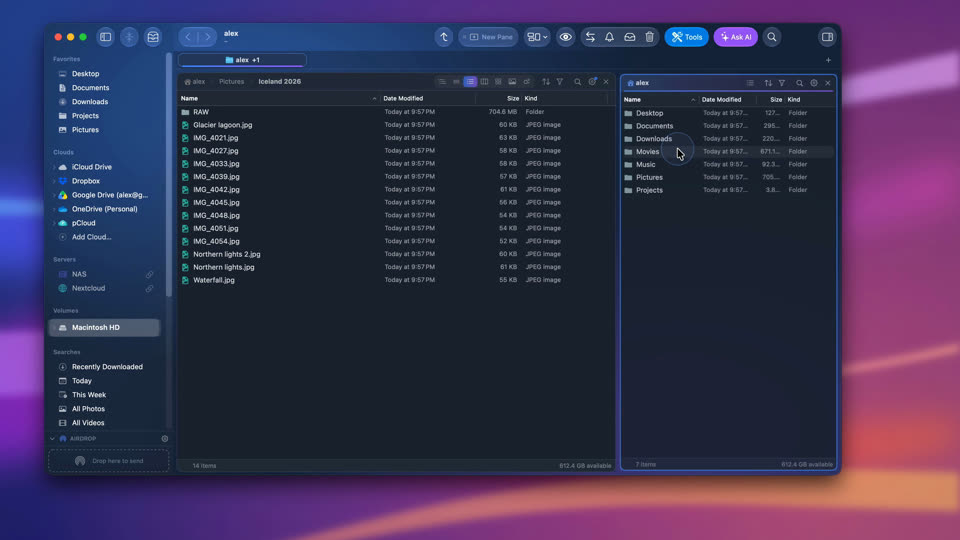
Two folders side by side
Drag New Pane into the window, pick a folder, copy across with F5 (F6 moves), and undo with ⌘Z.
-
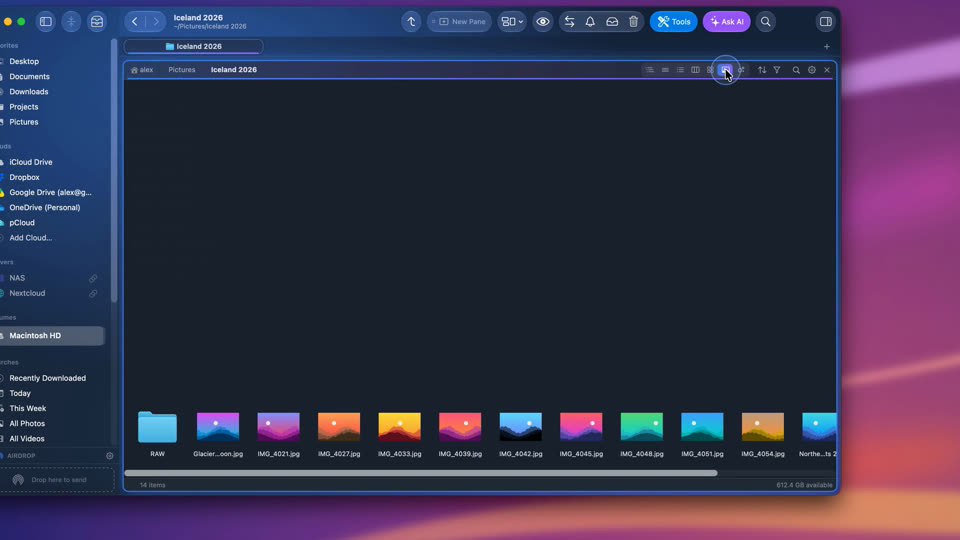
Seven ways to see a folder
Icons, list, detailed list, tree, columns, gallery and sizes as bubbles: switch from the pane's header, and keep a view for a folder from its gear.


-
Two folders side by side
Drag New Pane to the edge of the window, pick a folder, and press F5 to copy across. ⌘Z undoes it.
-
Seven ways to look at a folder
List, details, tree, columns, gallery, sizes or icons: each pane has its own view, right in its header.
-
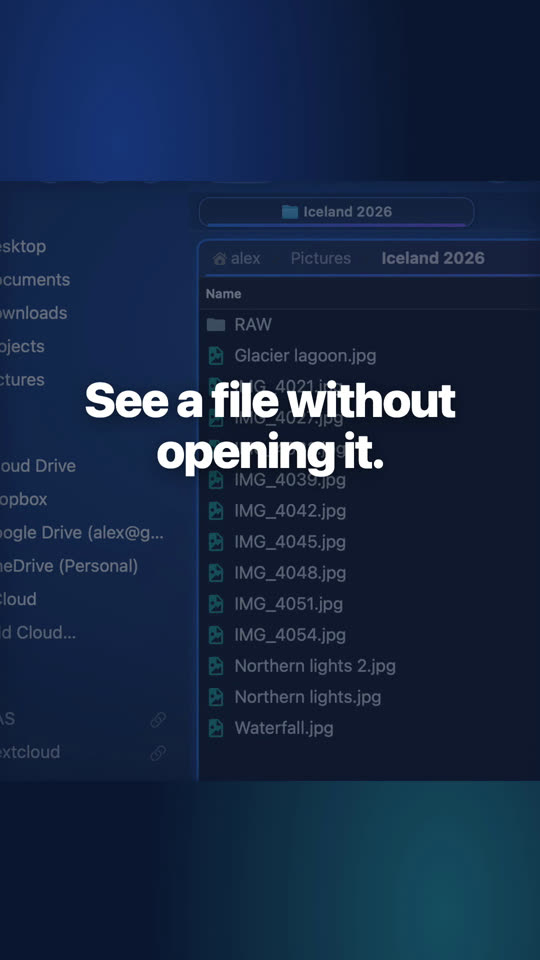
Preview your files beside the folder
Drag New Pane to the edge of the window and choose Preview: every file you select shows in large.


Questions
As many as fit: each pane can be split again, to the right or below. Most people work with two to four.
Yes: with synced navigation, opening a subfolder on one side opens the same one on the other — handy to compare a folder with its backup.
Yes. Windows, tabs, panes and their folders come back at the next launch; scenes and workspaces keep the arrangements you want to reopen on purpose.

See for yourself, free for 7 days
Every feature, no account, no credit card. Then $49.99, once, every future update included — no subscription.