
Copies and history
Nothing ever lost
Every copy, move, rename and trash lands in the Operations history, day after day. Undo any line, resume a copy that dropped, and never lose a file to a “Replace”.
- Undo any line
- Copies that resume
- Replace = Trash first
7 days free with every feature, no account, no card. Then $49.99 once for up to 3 Macs, every future update included — no subscription.

In short
Folia Files records every file operation in a history you can undo or redo line by line (⌘Z and ⇧⌘Z go through it too). When a file is replaced, the old one goes to the Trash first. Network copies that drop resume where they stopped and can be verified. Disks, your home folder and system folders are never replaced or trashed, and the conflict dialog defaults to “Keep both”.
One history for everything
The Operations button in the toolbar shows what is running, what is finished and the history, day by day, with a search and a filter by type. Undo a move from yesterday, redo it, see where a trashed file went.
Replace without fear
Replacing a file never deletes the old one silently: the new one is copied next to it first, then the old one goes to the Trash and the new one takes its place. If the Trash refuses (some disks have none), Folia Files asks — once per operation.
Cancel a copy and only what it created is removed. A folder that existed before is never emptied.
Copies that survive the network
A copy to a server that drops waits, then resumes where it stopped — verified if you like. A server that stops answering never locks the window. During long copies, backups and imports, the Mac does not go to sleep.
Ejecting, explained
When a disk refuses to eject, Folia Files says which app is using it, offers to quit it and try again.
See it in action
-
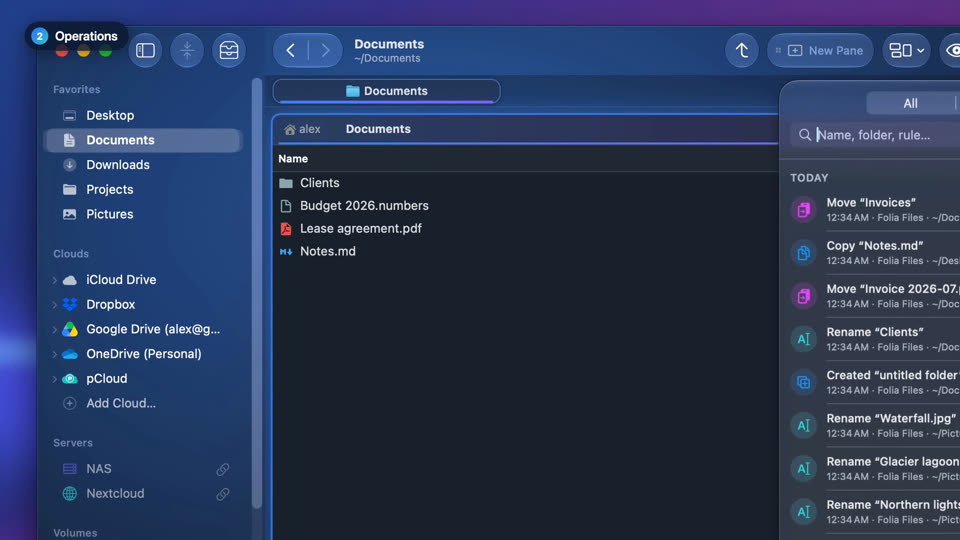
Undo a move, a copy or a rename
Every copy, move, rename and trip to the Trash goes into Operations, where any of them can be undone, even later.

-
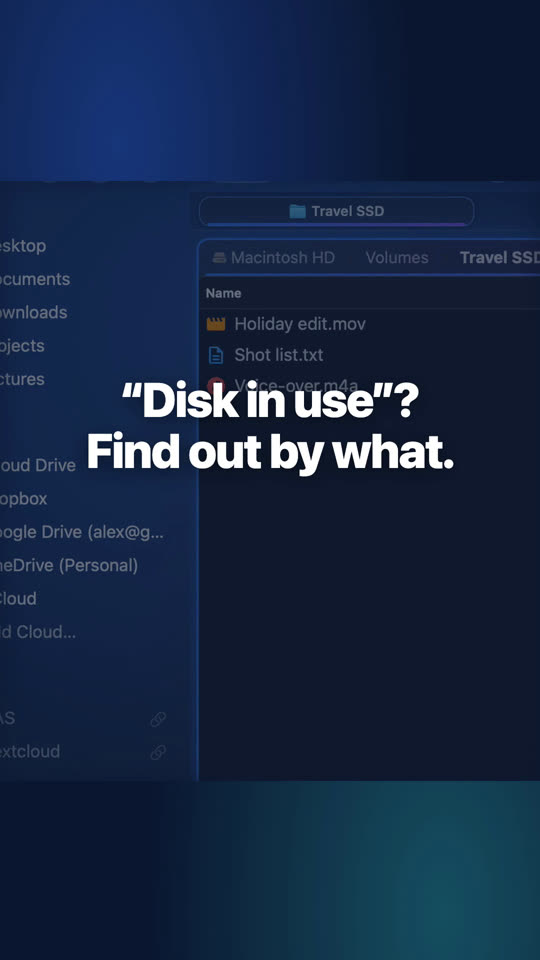
Eject a disk that says it's in use
Folia Files tells you which app is holding the disk. Close it, click Try Again, done.
-
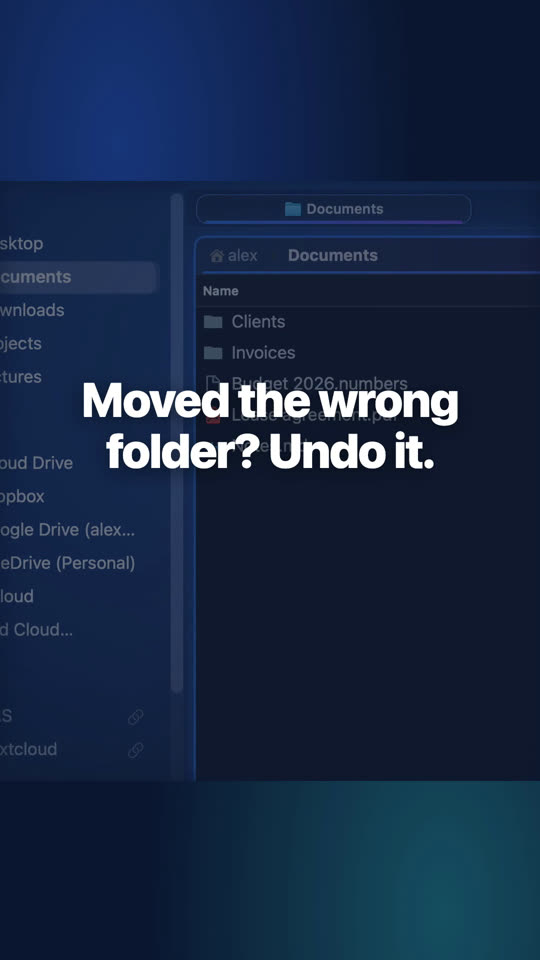
Undo a file move
Every copy, move, rename and trip to the Trash goes into Operations. Click Undo, even later, and things go back.


Website edition and Mac App Store
Everything here is in both editions, except “force eject” and “eject before sleep, remount on wake”, which are in the website edition.
Questions
Day after day: you can scroll back and undo an operation as long as the files are still where the history left them.
A dialog asks, with “Keep both” as the default button. Two sources with the same name in one copy each keep theirs (“name 2”).

See for yourself, free for 7 days
Every feature, no account, no credit card. Then $49.99, once, every future update included — no subscription.