
Modules
Everything at hand, right beside your files
The Finder shows files. Folia Files also keeps what you need about them right next to them: twenty-one modules in the sidebars or as panes, each one following the folder or the file you are on.
- 21 modules
- In a sidebar or as a pane
- Follow the active pane
7 days free with every feature, no account, no card. Then $49.99 once for up to 3 Macs, every future update included — no subscription.

In short
Folia Files has twenty-one modules you place in the right sidebar, under the left sidebar or as a pane of their own (drop a New Pane and pick one in its grid). They follow the active pane: Info, Preview, Notes (with a note for each folder), Map (a folder's photos where they were taken), Activity (processor, memory, network, disks, energy), Versions (earlier versions from macOS, your backups and, in the website edition, Time Machine), Timeline, Arrivals, Trash, Tags, Duplicates, Quick Actions, Disks, Operations, Backups, Search, the Shelf, Recents (files and folders), the clipboard history, AirDrop and Tree (your favorites, clouds, servers and disks, driving the pane you pick).
In a sidebar, or as a pane
Click “Modules” above a sidebar and tick the ones you want: they stack in the right sidebar, or under the left sidebar's list if you prefer a single column. Drag a header to reorder them, the line between two to resize them, double-click a header to fold one.
Want one large? Drag “New Pane” to an edge of the window: a grid asks what the pane shows, and a module is one click away — the activity next to your folders, the map beside the photos, a note beside the project.

Notes, and a note for each folder
As many notes as you like in one module, saved as you type: checklists, bullet and numbered lists, titles and subtitles, bold, italic, underline, six highlighter colors and indents.
Make a note for a folder and it shows up whenever you open that folder — the packing list in the trip folder, the to-do in the project — then the free note comes back when you leave.
- Checklists you tick with a click
- Titles, subtitles and indents
- Six highlighter colors
- Kept on your Mac, one file per note
Your photos on a map
The geotagged photos of the active folder, and of its subfolders if you like, on a map or a satellite view, as thumbnails grouped by place. Click one to select the photo in the pane, double-click to open it. Place names are optional: to find them, the coordinates are sent to Apple Maps.
Activity, live
Processor core by core, memory and its pressure, network, disks, graphics and energy, in curves that scroll — and, in the website edition, the busiest apps. It only measures while it is on screen and the screen is on.
The versions of a file
The file as it is now, then its earlier versions: the ones macOS keeps, the copies in your Folia Files backups and, in the website edition, Time Machine. Open one read-only, compare it with today's, restore a copy next to it, or replace the file: the current content is kept, and ⌘Z undoes it.
And the rest
- Timeline: the folder's days on a calendar, and the files of each day
- Arrivals: what just landed — downloads, screenshots, AirDrop — ready to file away
- Trash: what just went, put back in one click
- Tags: the selection's tags in one click, or drop files on a tag
- Duplicates: the other copies of the selected file
- Quick Actions: drop files on a tile — zip, JPEG, smaller images, one PDF, copy or move to a folder
- Disks: free space, and eject
- Operations and Backups: what is running, the history, and your backups and syncs
- Tree: your favorites, clouds, servers and disks as a tree that follows and drives the pane you pick with a click
See it in action
-
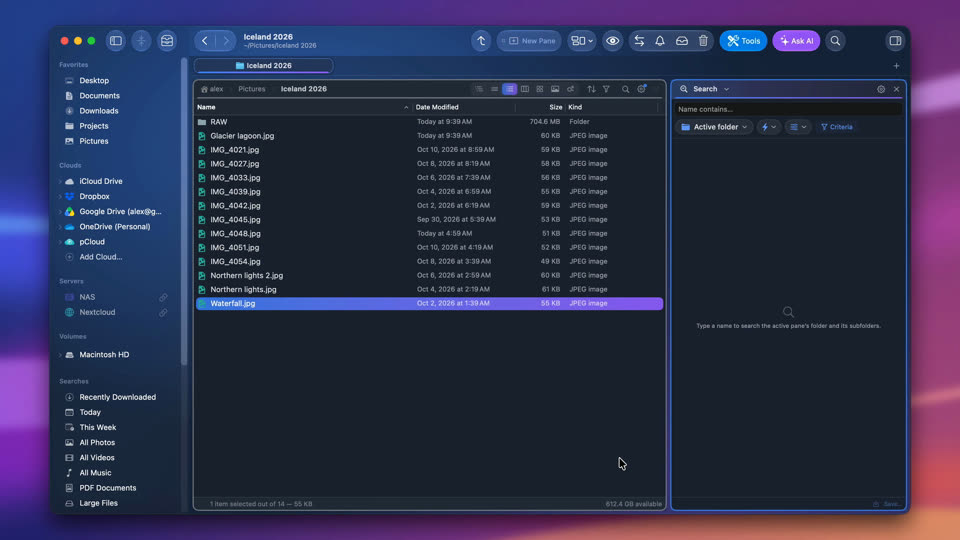
Every module, one by one
Where modules go — the right sidebar or a pane of their own — then each module in turn, in the order of the Modules menu.
-
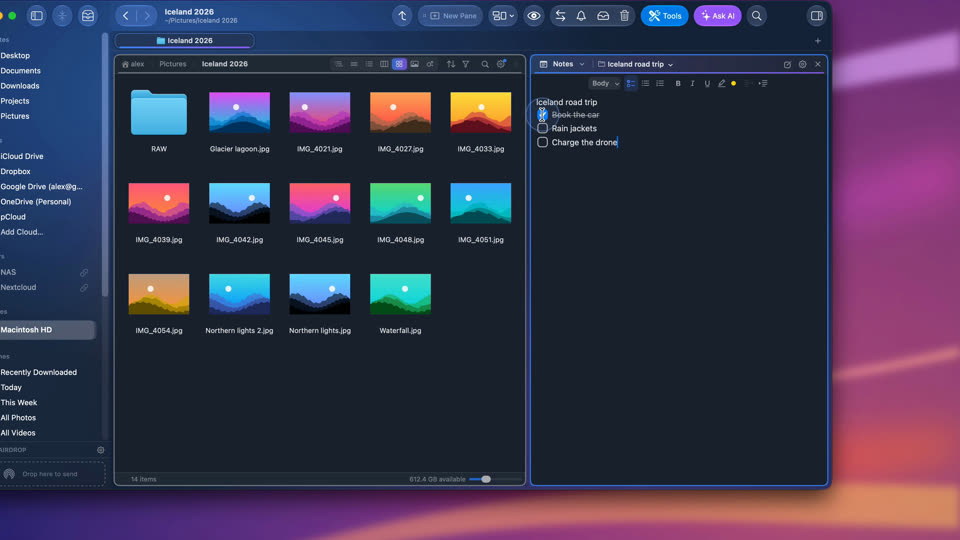
A note for every folder
The Notes module keeps a note for each folder — titles, checklists, highlights. It shows up when you open the folder and saves itself as you type.


-
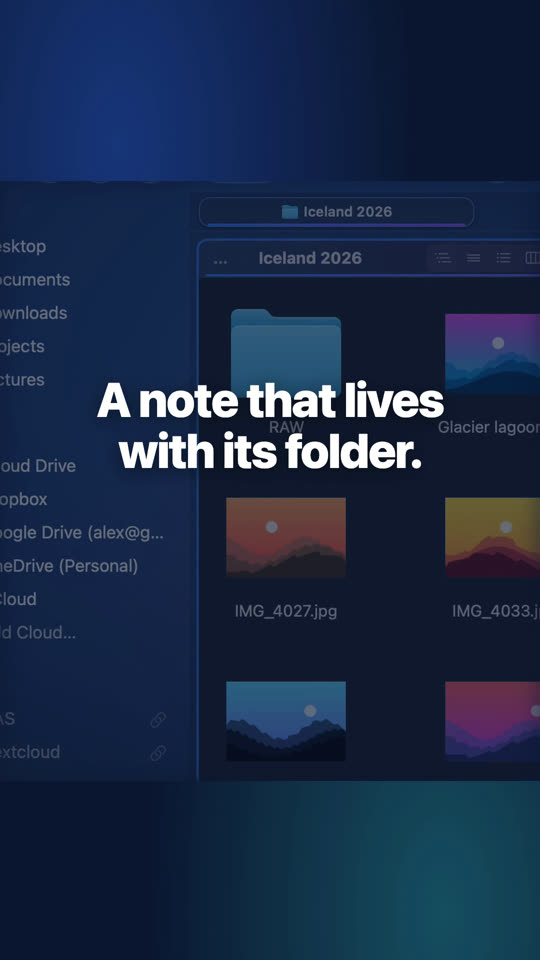
A note for every folder
Checklists, titles, highlights: the note comes and goes with its folder.
-
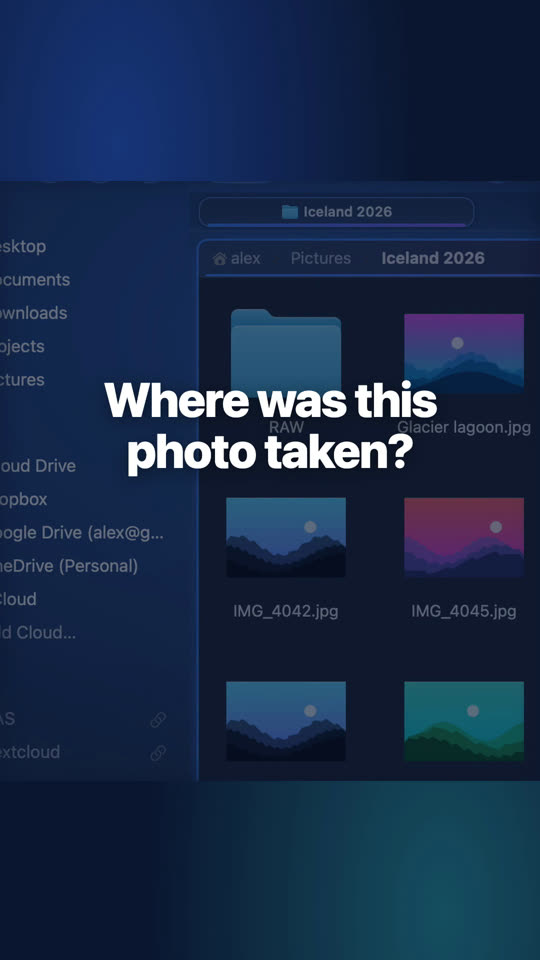
See where your photos were taken
A Map pane next to a folder of photos: every photo with a location shows up. Click one to select it.
-
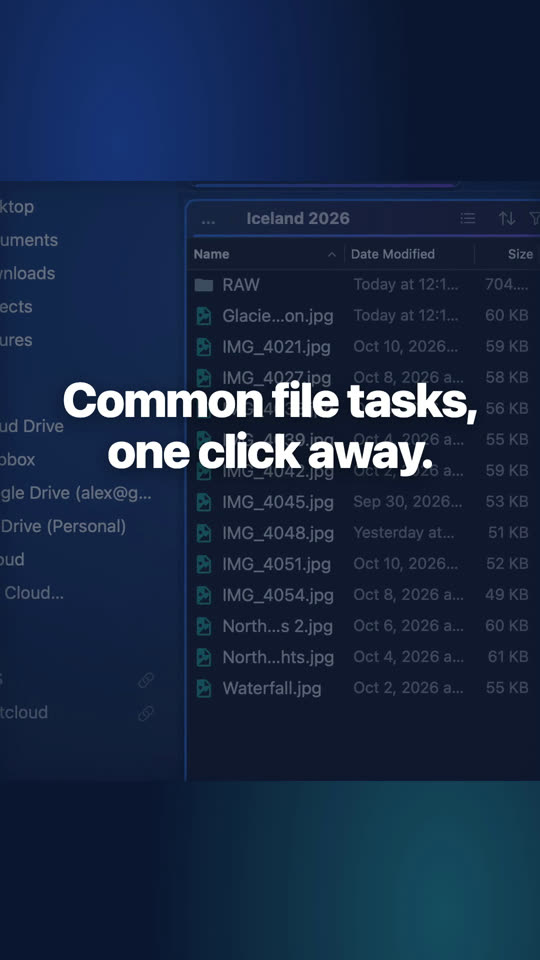
One-click actions for your files
Compress, convert to JPEG, resize, make a PDF: one tile of the Quick Actions module.
-
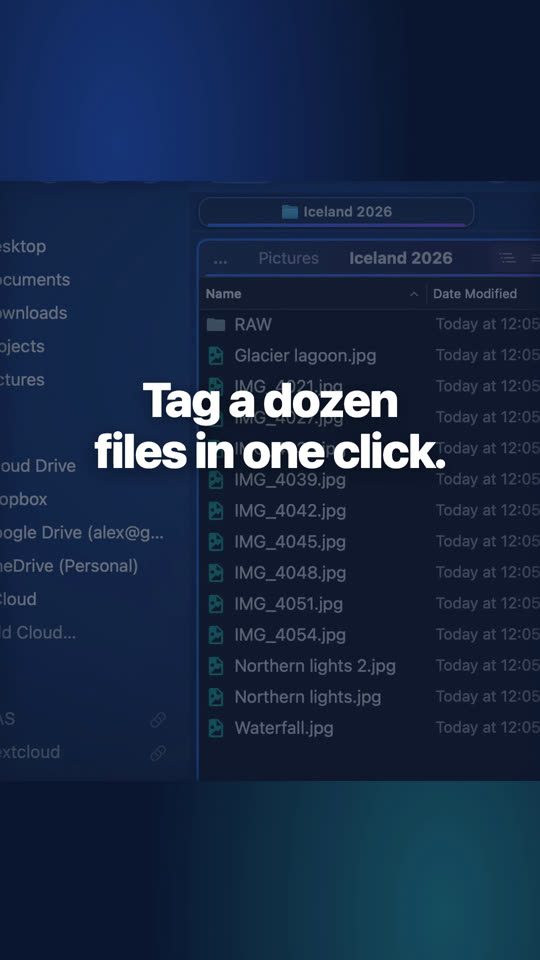
Tag many files at once
Tick a tag in the Tags module and every selected file gets it. The Finder's own tags.


Questions
No. Each one reads in the background and only while it is on screen; the Activity module stops measuring when it is hidden or the screen is off.
Yes, all twenty-one. Only Time Machine in Versions and the busiest apps in Activity are website edition features.
On your Mac, in Folia Files' folder of the Library (Application Support), one file per note. They are never sent anywhere.
Keep reading
Panes, tabs and scenes
As many folders side by side as you need, eight views, layouts you save and reopen.
Drawer and Shelf
A drawer at the edge of the screen, over any app: Shelf, favorites, clipboard, AirDrop.
Tools
Duplicates, PDF, compare, automatic rules, photo and video actions, card import, archives.

See for yourself, free for 7 days
Every feature, no account, no credit card. Then $49.99, once, every future update included — no subscription.