
Adding a cloud (50+ services)
Connect Google Drive, Dropbox, OneDrive, pCloud, Box, Proton Drive, kDrive, Jottacloud, Backblaze and 40 more services, mounted as disks through rclone.
Folia Files can mount more than fifty cloud services as disks. It does it through rclone, the open-source tool that knows them all, and rclone comes inside Folia Files: there is nothing to install, and it never uses or changes the rclone you may have installed yourself.
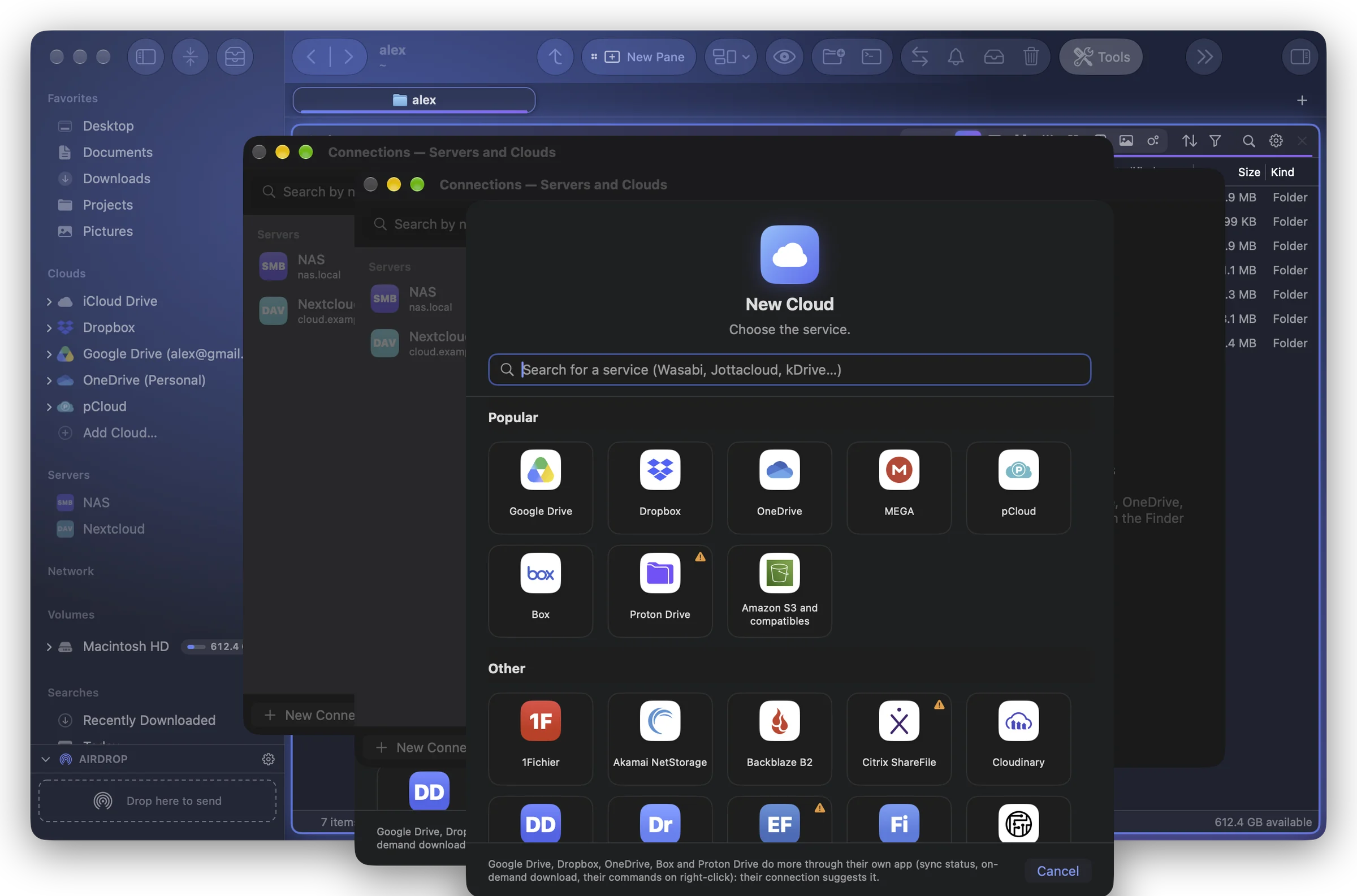
Add a cloud
- Click Add Cloud… at the bottom of the sidebar's Clouds section, or open Tools › Connections (Servers and Clouds)… ⌘K › New Connection.
- Pick a service. Popular shows Google Drive, Dropbox, OneDrive, MEGA, pCloud, Box, Proton Drive and Amazon S3 and compatibles; Other lists every other service in alphabetical order. Type in Search for a service to narrow the list: it also finds services by other names (« SharePoint » finds OneDrive, « Infomaniak » finds kDrive) and S3 providers by brand (« Wasabi », « Cloudflare »).
- Sign in (see below), choose a Cloud folder (optional) if you only want part of the account, then click Mount.
A small orange triangle on a service's tile means rclone itself says it is not well looked after (failing tests, no maintainer): it may not work. That's the case for Proton Drive, iCloud Drive, Google Photos and a few others.
Signing in
It depends on the service:
- Sign In in the Browser… (Google Drive, Dropbox, OneDrive, pCloud, Box, Yandex, and every service that signs in on its own page): rclone opens the service's sign-in page in your browser. You sign in there; Folia Files never sees your password. Later, Sign In Again… renews it.
- A user and a password, or keys (Koofr, Backblaze B2, Storj, S3…): type them in the Account section.
- Finish Setup with rclone… (iCloud Drive, Seafile, SugarSync, Internxt, PikPak): the service asks something more, such as a two-step code. rclone's questions show in a sheet, one after the other; Cancel keeps what was already set up, and you can pick it up again whenever you like.
Some services ask a question during sign-in (OneDrive: which drive or SharePoint library to use; Jottacloud: how to connect). It shows in the same sheet, with rclone's choices.
All rclone options
Under the account, All rclone options (n) is folded. Unfold it to set anything rclone allows for that service (chunk sizes, upload cutoffs, a client ID, a region, the trash behavior…). Search for an option filters them.
- The common settings have names in your language; the others keep rclone's names. Their descriptions are rclone's own, in English.
- An empty value takes rclone's default (shown in grey). Choices offered by rclone appear in a menu.
- Saved passwords are never shown again: leave the field empty to keep them.
- Options apply at the next mount.
Where your accounts are kept
Folia Files keeps the accounts it creates in its own rclone settings, separate from yours, named folia-dropbox, folia-dropbox2… Your own rclone remotes are never changed or deleted.
To use a remote you configured yourself with rclone config, choose Existing rclone Remote (at the end of Other), pick it in Remote and, if you like, a Folder (optional). Configure a New Remote in Terminal… starts rclone config in Folia's terminal, with the rclone inside Folia Files and your own rclone configuration file: nothing else to install, and the remote you make there appears in this list.
Not offered
Services that are not clouds (rclone's local disk, memory, archives…) and wrappers that combine other remotes are not in the list; they still work as an Existing rclone Remote.