
Board view
A folder as columns of cards, by subfolder, by tag or by destination: drag a card to another column to file it.
The Mac App Store edition is coming soon. The website edition has everything. Compare the editions
On this page
View › Board shows a folder as columns of cards, like a kanban board. Dragging a card from one column to another files it: the file moves to that folder, or takes that tag. Made for sorting: Downloads, a folder of scans, the photos of a shoot.
The Board has no keyboard shortcut (⌘0 is Actual Size): choose it in the header's views or the View menu.
Columns by
The band at the top of the board (and the pane's gear) chooses what the columns are:
| Columns by | The columns | Dropping a card in a column |
|---|---|---|
| Subfolders (default) | « In “folder” » (its files), then one column per subfolder. | Moves the file into that subfolder. On a folder's card: into that folder. |
| Tags | No Tag, then one column per tag the folder's items carry. | Gives that tag (the tag of the column it left is removed). Into No Tag: removes it. |
| Destinations | « In “folder” » (what is left to sort), then one column per folder you chose, anywhere on your Mac. | Moves the file into that folder. |
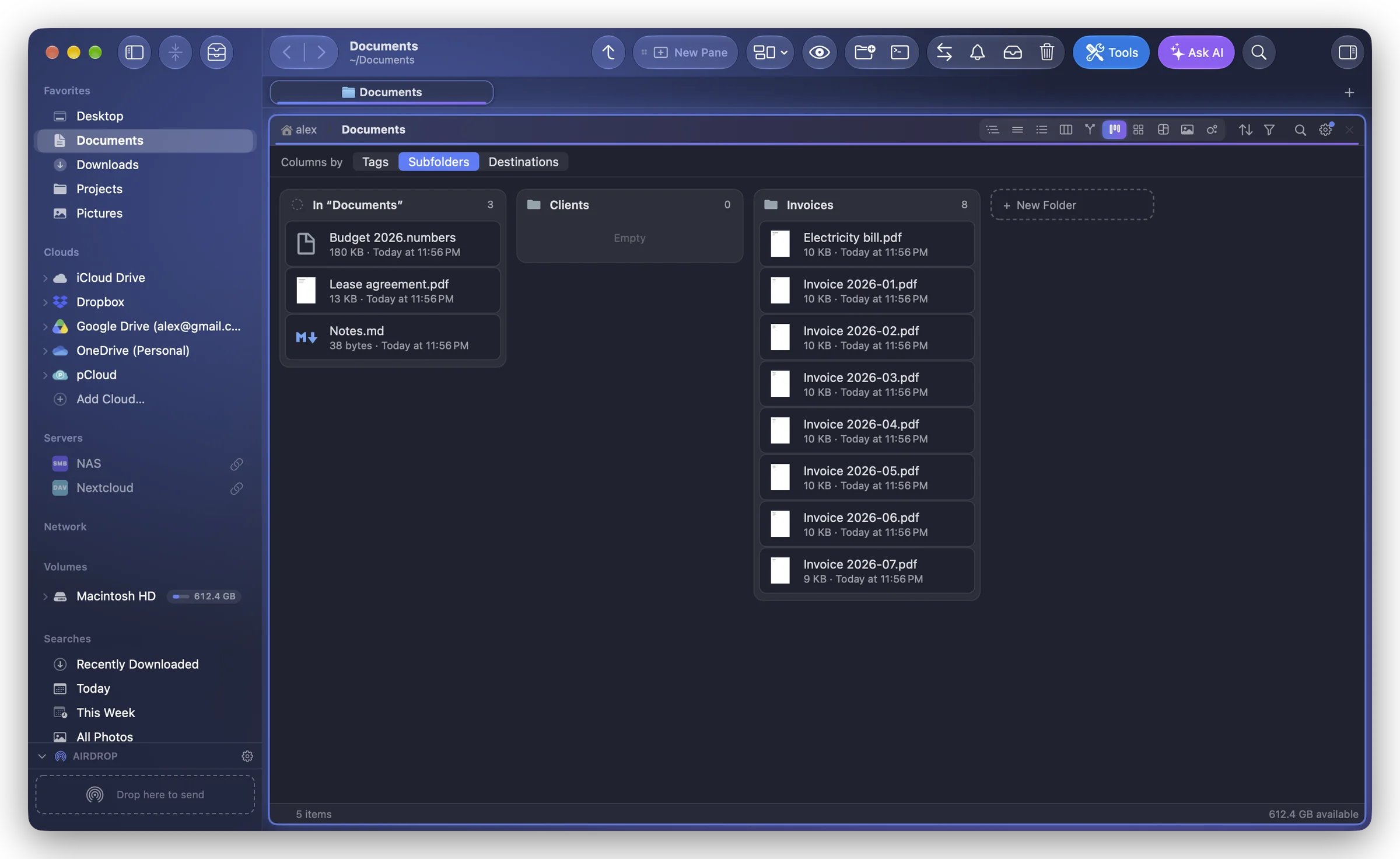
Every move or tag change is in the history: ⌘Z undoes it.
Add columns
The + at the end of the board:
- Subfolders: New Folder, a new subfolder and its column;
- Tags: a column for another tag: the Finder's colors, your Mac's tags, or New Tag… (kept while Folia Files is open);
- Destinations: Add a Destination…: the other panes, your favorites, recent folders, or Other Folder…. You can also drop folders on the button, from the sidebar, a pane or the Finder.
Destinations are remembered for the folder you sort: open it again in the Board and they are back. A destination that can't be found shows « Not Found »; right-click its column to remove it.
Good to know
- Drag a card near the left or right edge of the board to scroll it, near the top or bottom of a column to scroll the column.
- An item with two tags appears in both columns.
- Select several cards with ⌘ or ⇧ and drag them together.