
The pane header
What each part of a pane's header does: path, views, sort and group, filter, search, the gear menu and close.
The Mac App Store edition is coming soon. The website edition has everything. Compare the editions
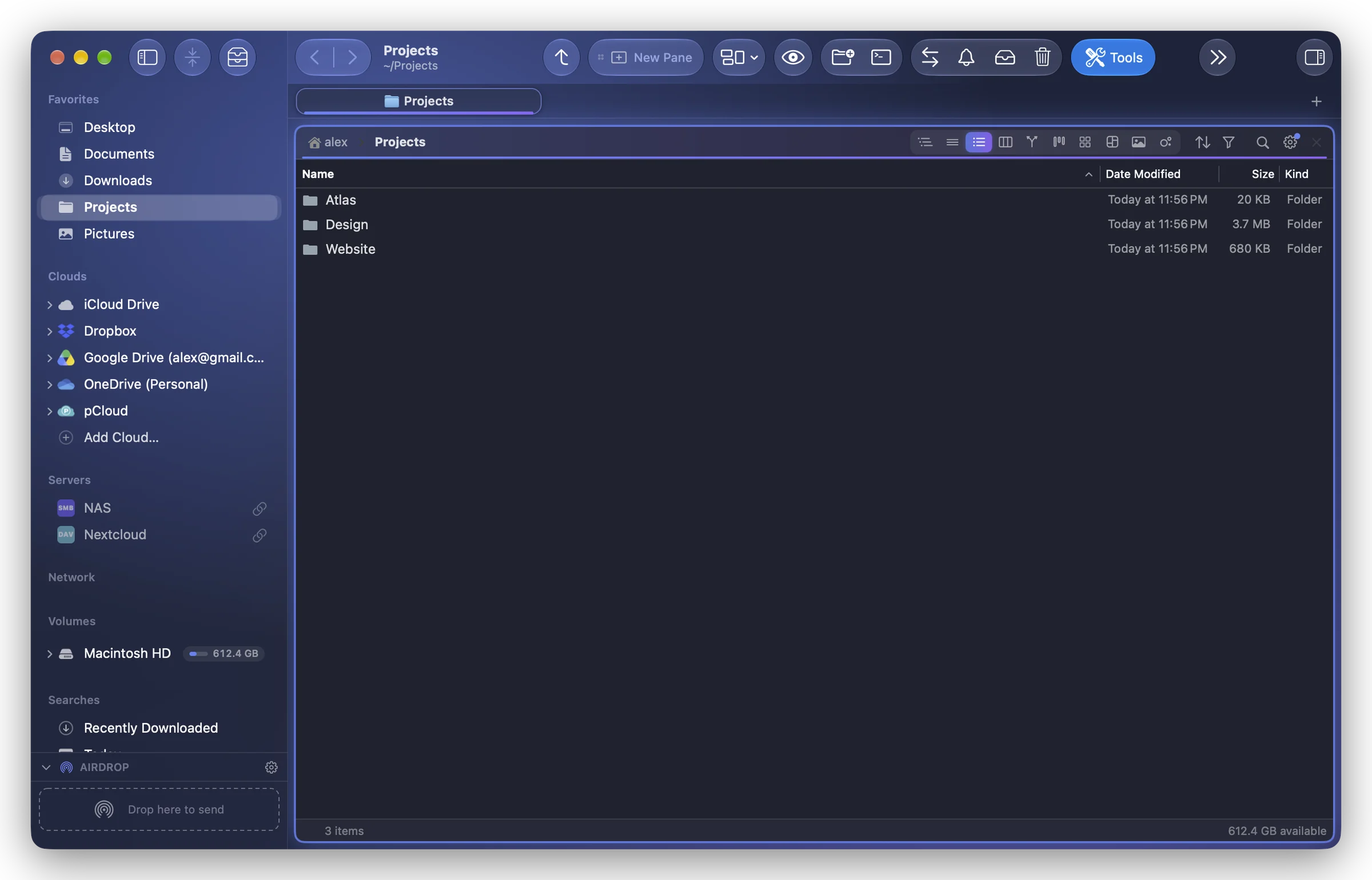
Each pane has a header with everything that concerns that pane only. From left to right:
| Part | What it does |
|---|---|
| Path | The folders down to the one shown. Click one to go there; its chevron lists its subfolders. Double-click to type a path. See The path bar. |
| Views | One button per view (Icons, List, Detailed List, Columns…): ⌘1 to ⌘9 do the same. Right-click a view's icon for its defaults. See The views. |
| Sort and Group | One menu: sort by name, dates, size or kind, ascending or descending, group by kind, date, size, tag or application, Folders on Top. See Sort and group. |
| Filter by Kind | The funnel: show only images, videos, audio, PDF, documents, archives, applications or other files. Folders stay shown. See Filter by kind. |
| Search | The magnifying glass: a click searches this folder as you type; right-click for a full search. |
| Gear | Folder and Pane Settings: the view's options, saving the view for the folder, the folder's background, color and icon, its thumbnails, the pane's terminal. |
| × | Closes the pane. |
When the pane is narrow
The header gives way little by little, and always keeps the folder's name readable: first the views go into a menu, then the filter goes into the sort menu, then the gear and the sort go into a More Actions menu (« … »). The × stays.
The gear menu
The gear opens Folder and Pane Settings, in three parts:
- View: a card saying which view is shown and where it comes from (« The pane's own view », saved for this folder, inherited from a parent folder), the current view's options (icon size, column width, thumbnails…), then Save for This Folder, Save for This Folder and Its Subfolders, Revert to the Saved View, Forget This Folder's View, Use as Default View. See Saved views.
- Folder Settings: Folder Background…, Folder Color and Icon…, and Thumbnails (keep them on disk for this folder).
- Pane Settings: Terminal in This Folder (website edition), Pane Settings….
When you change the view of a folder that has a saved view, a small dot appears on the gear: the change is shown but not saved until you choose Update for This Folder (or revert).
Filter by kind
Click the funnel and choose one or more kinds. The filter belongs to the pane and follows it from folder to folder, but it is never saved: a new pane, or Folia Files reopened, shows everything again. When the filter hides everything in a folder, the pane says how many files it hides, with a button to remove the filter.
Other marks
- A branch pill appears in a Git repository (with the number of modified files), when Settings › Panes › Contents › Show Git status is on.
- A small tree symbol before the path means the pane is driven by a Tree module (see Folder trees in the sidebar).