
Automatic Rules
Let a folder file, rename, tag or clean up what lands in it, by itself: screenshots, old downloads, invoices, installers.
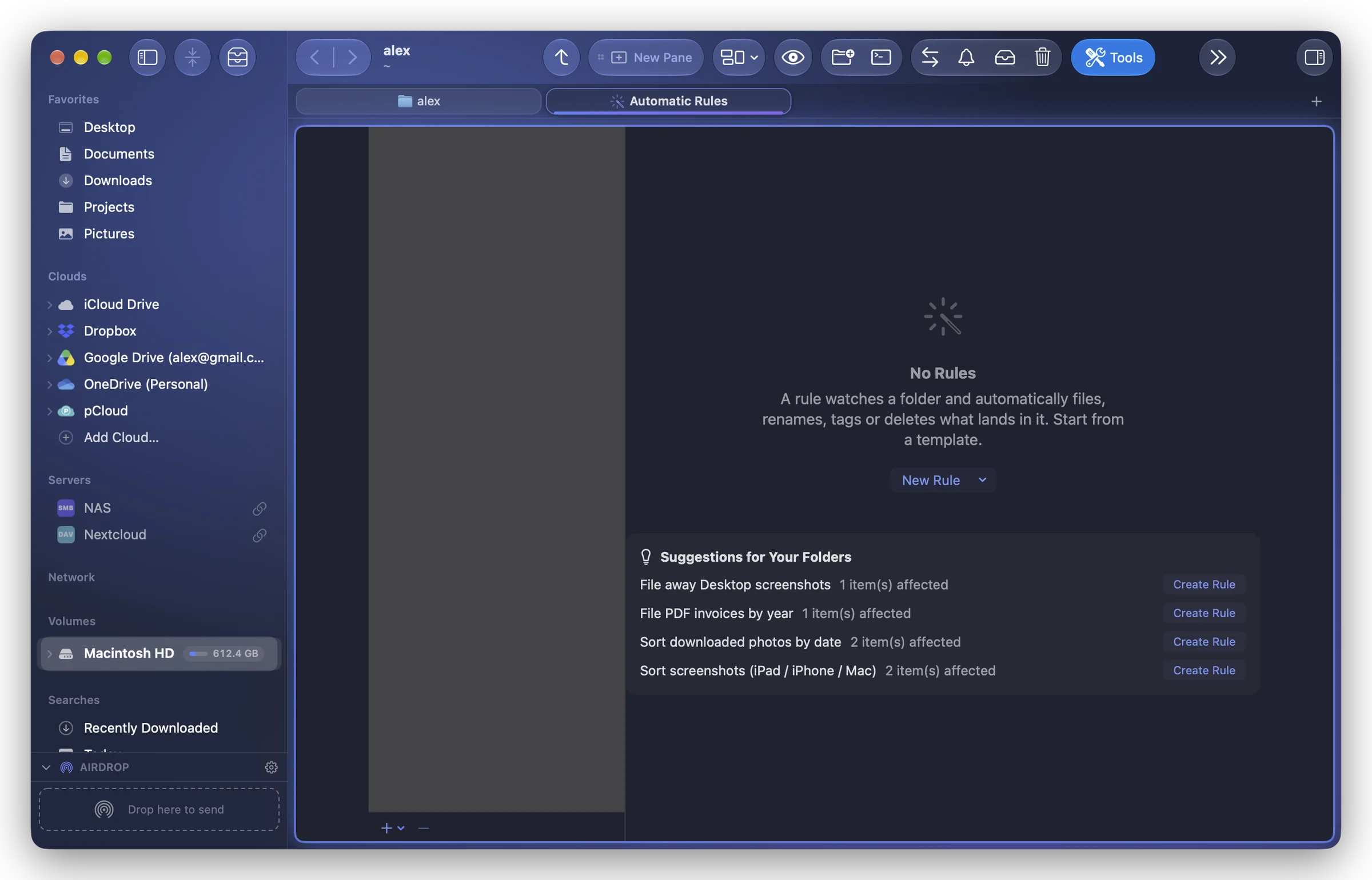
A rule watches a folder and acts on what arrives in it: move the Desktop's screenshots to Pictures, send downloads older than 30 days to the Trash, file PDF invoices by year. It works on its own, as long as Folia Files is open (even with no window: it can live in the menu bar).
Create a rule
- Tools › Automatic Rules… opens the Rules tab. Click New Rule.
- Start from a template, or a Blank Rule. The templates:
- File away Desktop screenshots;
- Clean up Downloads older than 30 days;
- Archive downloads not opened for 3 months;
- Delete installers (.dmg, .pkg) after 7 days;
- File PDF invoices by year;
- Sort downloaded photos by date;
- Sort screenshots (iPad / iPhone / Mac).
- Adjust the rule (see below), check the preview, then turn on Active.
A new rule starts off: it does nothing until you've checked its preview and turned it on.
How a rule is built
- Watch: the folder; Also look in subfolders if needed.
- If: the conditions (name, extension, kind, size, dates, screenshot and from which device, where it was downloaded from, text in the document…). Items that meet all conditions or at least one condition. With no condition, the rule takes everything that lands in the folder.
- Then: the actions, in order:
| Action | What it does |
|---|---|
| Move To | moves it to a folder, optionally into a subfolder such as {year}/{month} |
| Copy To | copies it there |
| Rename To | renames it with a pattern |
| Add Tag | adds a tag |
| Move to Trash | moves it to the Trash |
| Open | opens it in its app |
| Run Command | runs a shell command on it ({file} is the item; website version) |
- Otherwise, If… adds another branch: « If » iPad screenshot, then here; « Otherwise, if » iPhone screenshot, then there… Each item follows the first branch whose conditions it meets; a last branch with no condition takes the rest.
Check before it acts
At the bottom, Now lists the items of the folder the rule would handle right now (« 12 item(s) would be processed »). Apply Now runs it at once on them. Recent Runs lists what the rule did, with any errors.
While you edit a rule, it waits until you leave the editor before acting by itself. A file still being written (changed in the last few seconds) is left for the next pass.
Undo
Everything a rule does is recorded in the toolbar's Operations › History and can be undone there, even after the rule is deleted.