
The Connections window
Where you add, edit, mount, group, export and import your servers and cloud accounts.
On this page
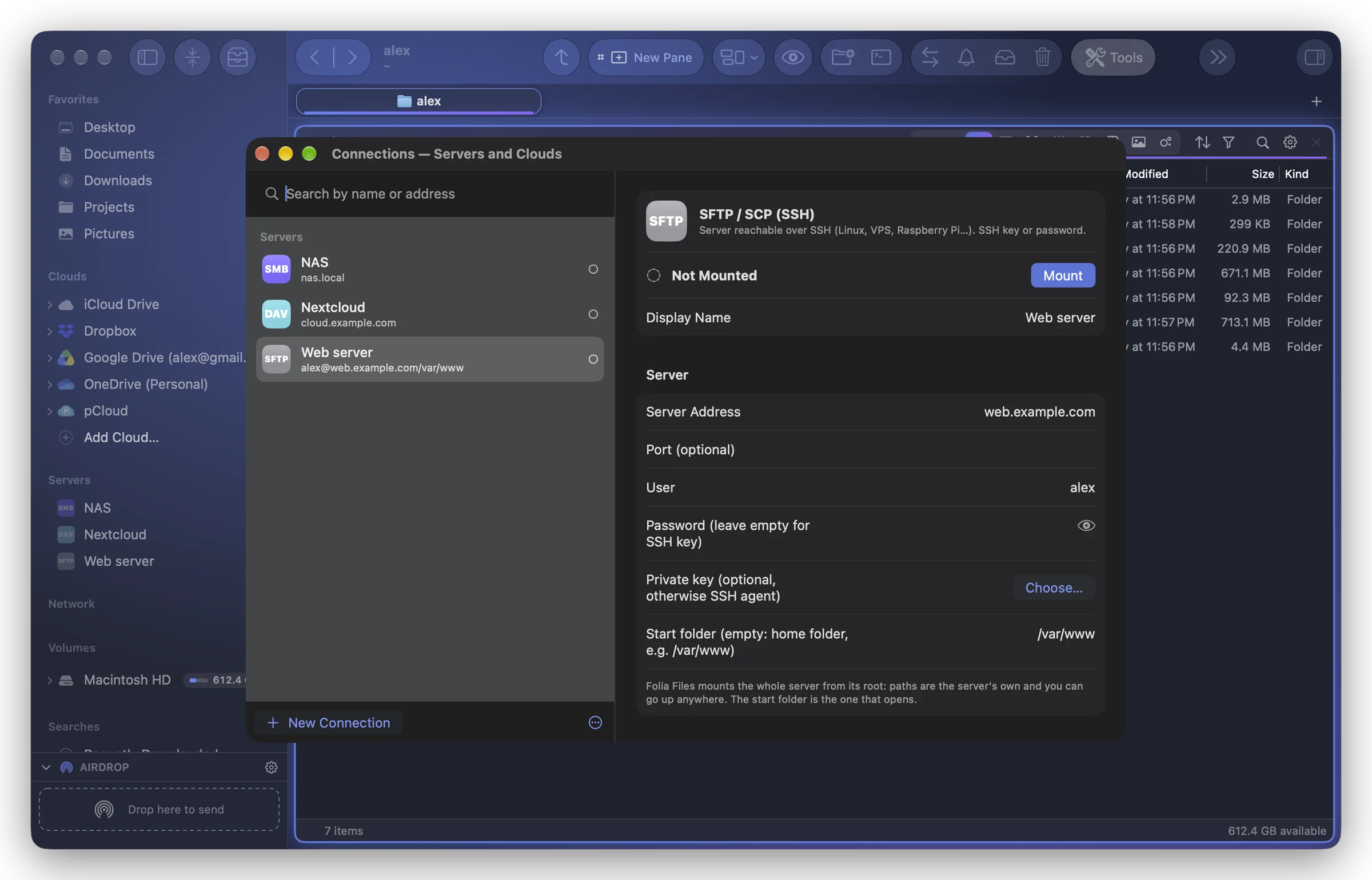
Folia Files mounts servers and cloud accounts as disks: once mounted, a connection shows up in the left sidebar (under Servers or Clouds), in the Finder and in the Open and Save dialogs of all your apps. Everything is set up in one window.
Open the window
- Tools › Connections (Servers and Clouds)… ⌘K
- In the left sidebar, Add Server… at the bottom of Servers, or Add Cloud… at the bottom of Clouds: the window opens straight on the choice of a server type or a cloud service.
- Right-click a connection in the sidebar › Edit Connection… opens the window with that connection selected.
The list
On the left, every connection with its icon, name, address and state (mounted or not). Above it, Search by name or address narrows the list as you type.
At the bottom:
- New Connection opens the choice of a server type or a cloud service (see Adding a server and Adding a cloud).
- The … menu (Groups, export, import) has New Group…, Export Connections… and Import Connections….
Right-click a connection for Mount or Unmount, Connection Log, Change Icon…, Move to Group and Delete….
Add a connection
- Click New Connection (or Add Server… / Add Cloud… in the sidebar).
- Pick a type: a server (SFTP, SMB, WebDAV, FTP, AFP, NFS) or a cloud service.
- The connection is created at once, selected in the list. Fill in its editor on the right.
There is no Save button: everything is saved as you type (half a second after the last key), and also when you leave the name field, switch to another connection, close the window or click Test Connection or Mount. A connection that lacks something essential is not saved yet: a line under its state says what is missing (« Not saved yet: the server's address is missing. »), and the last complete version is kept.
Passwords and secret keys go to your keychain, never to a plain file.
The editor
At the top: the service, its state and the Mount, Unmount or Open button. Then, depending on the type:
- Server, S3 Storage, Account or MEGA Account: the address and credentials (see each type's page).
- Recommended: the … app: for Google Drive, Dropbox, OneDrive, Box and Proton Drive (see Clouds with their own app).
- Options:
- Read-Only: nothing can be written to the server through Folia Files or any other app.
- Mount automatically when Folia Files launches: see Mounting and staying connected.
- Mount Point: where the disk appears on your Mac (for connections made through rclone).
- Group: the group the connection belongs to.
- Icon: its icon, with Change… and Original Icon (see Icons, colors and groups).
- Open First: an app (your VPN) to open before connecting.
- Test Connection (connections made through rclone) and Log.
- Delete…: removes the connection, its settings and its saved passwords from this Mac. Nothing is deleted on the server. A mounted connection must be unmounted first.
Groups
Use groups to sort many connections (« Work », « Clients », « Home »):
- In the … menu, choose New Group… and give it a name.
- Drag connections onto the group, or choose it in the editor's Group menu, or right-click › Move to Group.
Right-click a group to rename or delete it. Deleting a group never deletes its connections: they move out of it. The groups also show in the left sidebar.
Export and import your connections
To move your connections to another Mac, or keep a copy:
- … › Export Connections…, choose where to save the file.
- Choose a password (8 characters at least) and type it twice. The file (
.foliaconnections) is encrypted with it, the connections' passwords included. - On the other Mac, … › Import Connections…, choose the file and type the same password.
Importing adds the connections that are new and updates those with the same address (« Added: 2. Updated (same address): 1. »). In the website version, cloud accounts travel with their connection.
App Store version
The App Store version connects SMB, WebDAV, AFP, NFS and FTP shares by itself (FTP read-only, unencrypted). SFTP, S3 and cloud accounts are in the website version only; your clouds come through their own Mac apps. See Connections in the App Store version.