
The Search module and the advanced search
Open a search, where it appears, what each control of the Search module does, and when to use the advanced search tab.
The Mac App Store edition is coming soon. The website edition has everything. Compare the editions
On this page
Every search of Folia Files opens a Search module: a field, a row of pills that say where and how it searches, and the results. It can sit at the top of a tab, beside your folders, in a sidebar or in the drawer.
Open a search
- Click the magnifying glass in the toolbar (Search), or choose Edit › New Search (⌘⇧F).
- Right-click a pane's magnifying glass and choose New Search in This Folder: the search starts in that folder.
- Click a saved search or a tag in the sidebar: it opens in the place of the active pane. See Saved searches.
- Tools › All Tools… › Search.
The cursor waits in the field: type, and the search runs as you type (a short pause after the last key; press ↩ to run it at once).
Where it opens
Choose in Folia Files › Settings… › Search, under Search Button, Open a new search:
- In the Current Tab (the default): at the top of the tab, across its whole width, so the results have room for their columns. An empty search already there is used again instead of opening a second one.
- In a new tab: a new tab with the active pane's folder on the left and the search on the right; a folder of the results opens beside it.
Right-click the toolbar's magnifying glass to open one search in the other place, once.
The controls
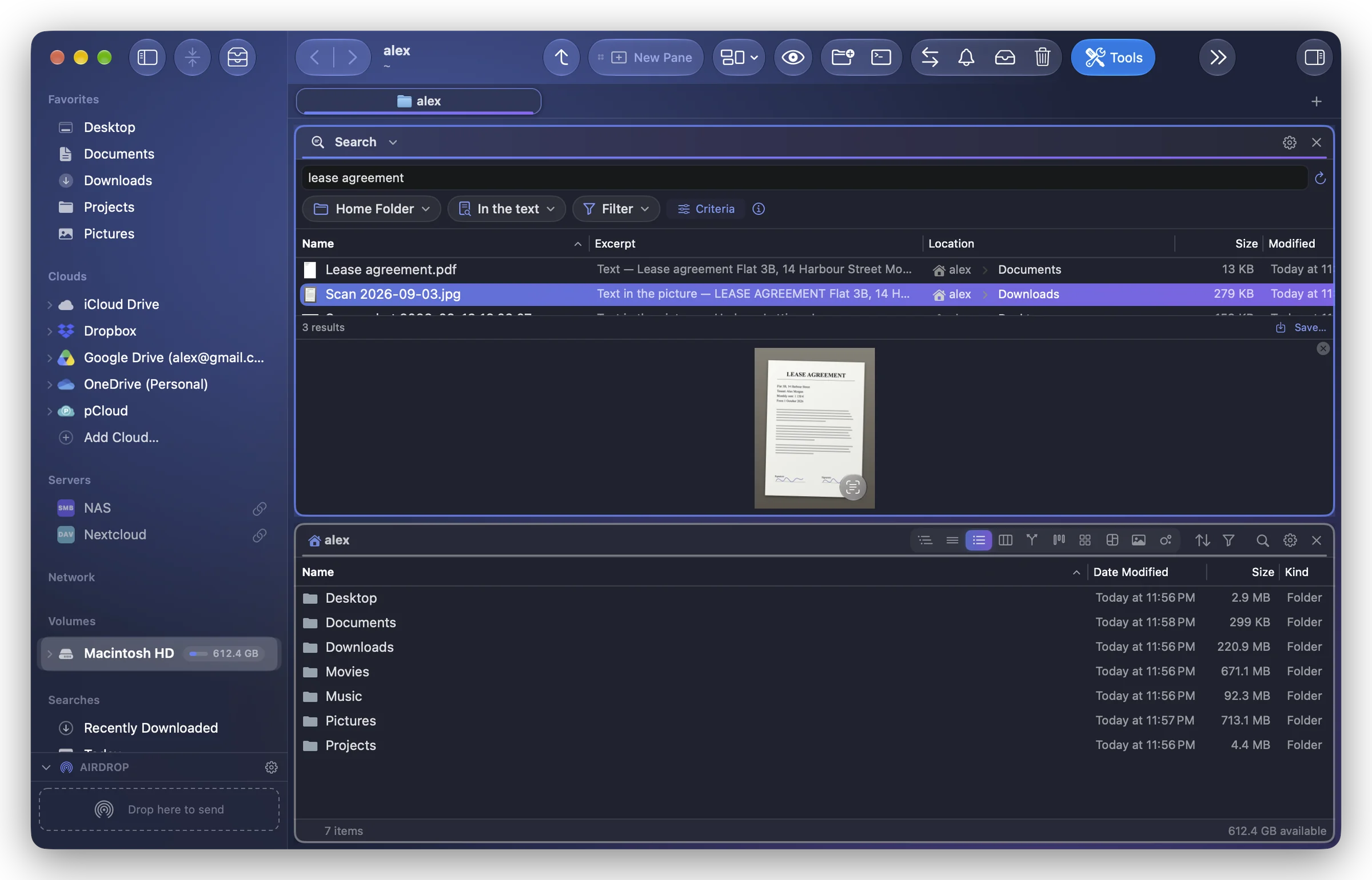
From left to right:
| Control | What it does |
|---|---|
| The field | The words to find. They must all be there, in any order. |
| ↻ | Run the Search Again (⌘R): see Results kept up to date. |
| Where | Everywhere, Active Pane's Folder, or the disks, clouds and folders you tick. See Where to search. |
| In the name / In the text / In pictures | What the words are looked for in. See Search names, text or images. |
| Filter (the funnel) | Kinds to keep, and hidden files, system files and package contents to include. See The search filter. |
| Criteria | Size, dates, tags…, joined by "and" or "or". See Criteria. |
| ⓘ | What the last search could not reach. See Search limits and the search report. |
From the field, ↓ or ⇥ moves to the results (the first one chosen), so you never need the mouse: then ↑ ↓, Space for Quick Look, ↩ to open. The same in the advanced search.
At the bottom: the number of results, Save… (to keep the search in the sidebar) and, when Spotlight could not search some protected folders, Full Disk Access….
When the module is narrow (in a sidebar), the pills shrink to their symbols; hover over them to read them.
The gear menu
The module's gear (its header, or the pane's header) offers:
- Save Search…: in the sidebar, under Searches.
- Open in Advanced Search: the same search in a tab of its own.
- Clear Search: an empty field and no criteria; the filter and places stay.
- Results Layout: In Columns When There's Room (the default: from about 600 points wide), Always in Columns or Always as a List (each item's folder under its name). Every Search module follows this choice.
The advanced search
The advanced search is the same search in a tool tab, with more room for the criteria: its own row of pills, Search (or Stop while it runs) and Save…. It opens from the module's gear (Open in Advanced Search), from Ask Folia's Advanced Search… button, and for the sidebar's searches when no window is open.
A Search module elsewhere
Like any module, the Search module can live in the right sidebar, under the left sidebar's list, in the drawer or in a pane of its own. Folded in a sidebar, its field stays in its header: start typing there and it unfolds with the results. See The Search module.