
Duplicate Files
Find identical copies by their contents, keep the right one and move the others to the Trash.
The Mac App Store edition is coming soon. The website edition has everything. Compare the editions
On this page
Tools › Duplicate Files… ⇧⌘U finds files whose contents are identical, whatever their names. Files of the same size are compared by their SHA-256 checksum: two files are duplicates only if every byte is the same.

Find duplicates
- In Where to Look, add folders with Add…, take the active pane's selection with Pane Selection, or drag folders there. The files they hold appear below, ticked: untick what you want to leave out. You can also describe the files in words (« photos over 5 MB from this year ») and click Select.
- Set a Minimum size to skip small files.
- If another pane is open, Also Include “…” adds its folder: its files are compared with those on the left, handy to see which photos are already on a backup disk.
- Click Find Duplicates. Folia Files lists the files, then compares their contents, and shows its progress. Stop ends the search.
Two names of the same file (a hard link) count as one, never as a duplicate.
Choose what to keep
The results come in groups (« 3 copies of 4.2 MB — 8.4 MB reclaimable »), with the total taken up by duplicates. In each group, tick the copies to remove. Preview and Show in Folia Files help you check.
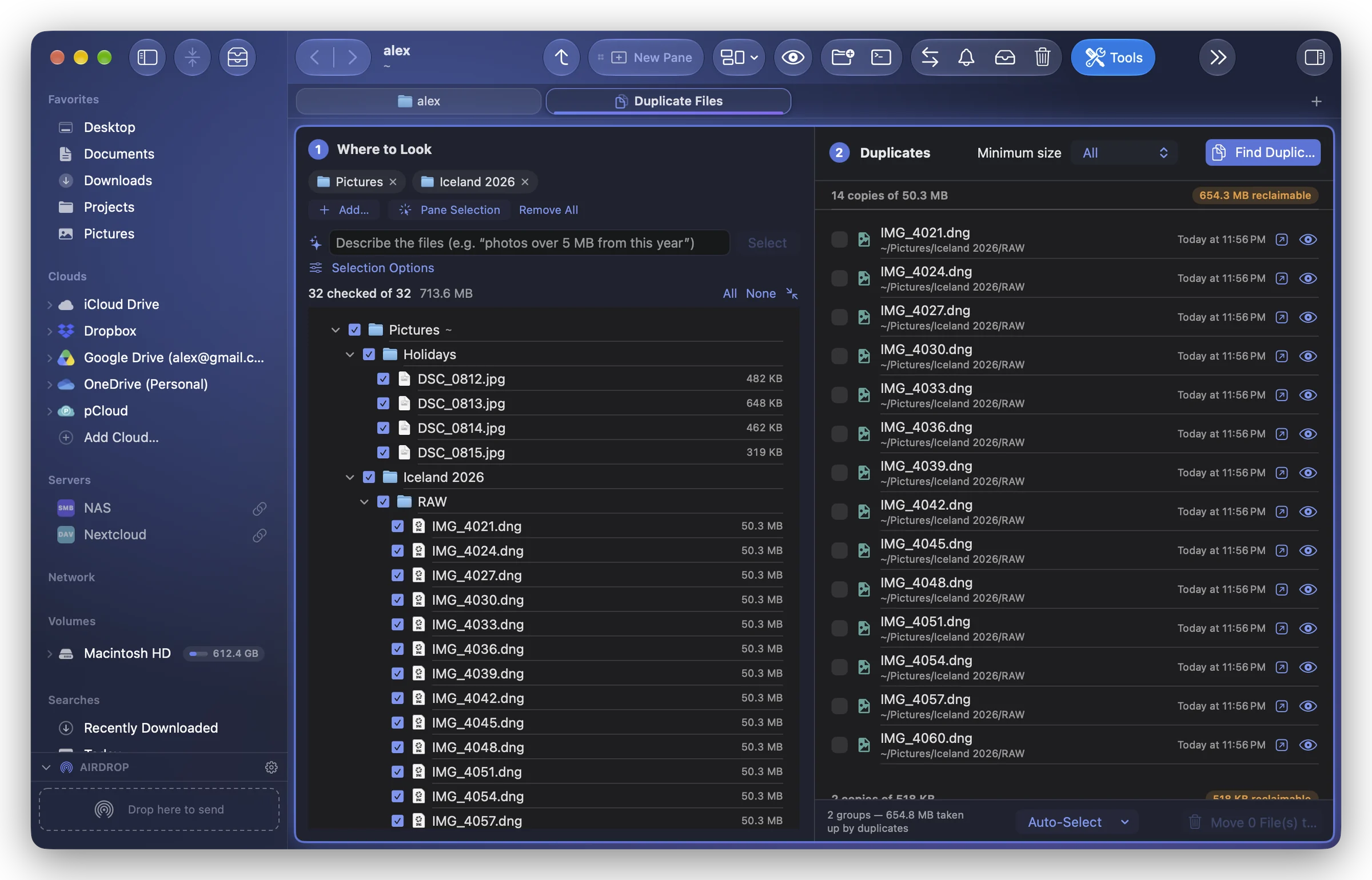
Auto-Select ticks for you, keeping one copy per group:
- Keep Newest or Keep Oldest;
- Keep Shortest Path or Keep Longest Path (to keep the copy in its proper folder rather than in « Downloads/Copy of… »).
Deselect All starts over.
Remove them
Click Move … File(s) to Trash at the bottom. Before moving anything, Folia Files checks again:
- a group whose kept copy is gone or has changed since the search is skipped;
- a file modified since the search is skipped;
- a group where every copy is ticked is refused (« No copy would be kept »).
What was moved can be put back from the Trash, or undone from the toolbar's Operations (⌘Z right after).