
Sync
Copy or mirror a folder to another disk, a NAS or a cloud, on demand, on a schedule or as soon as something changes, with a dry run first.
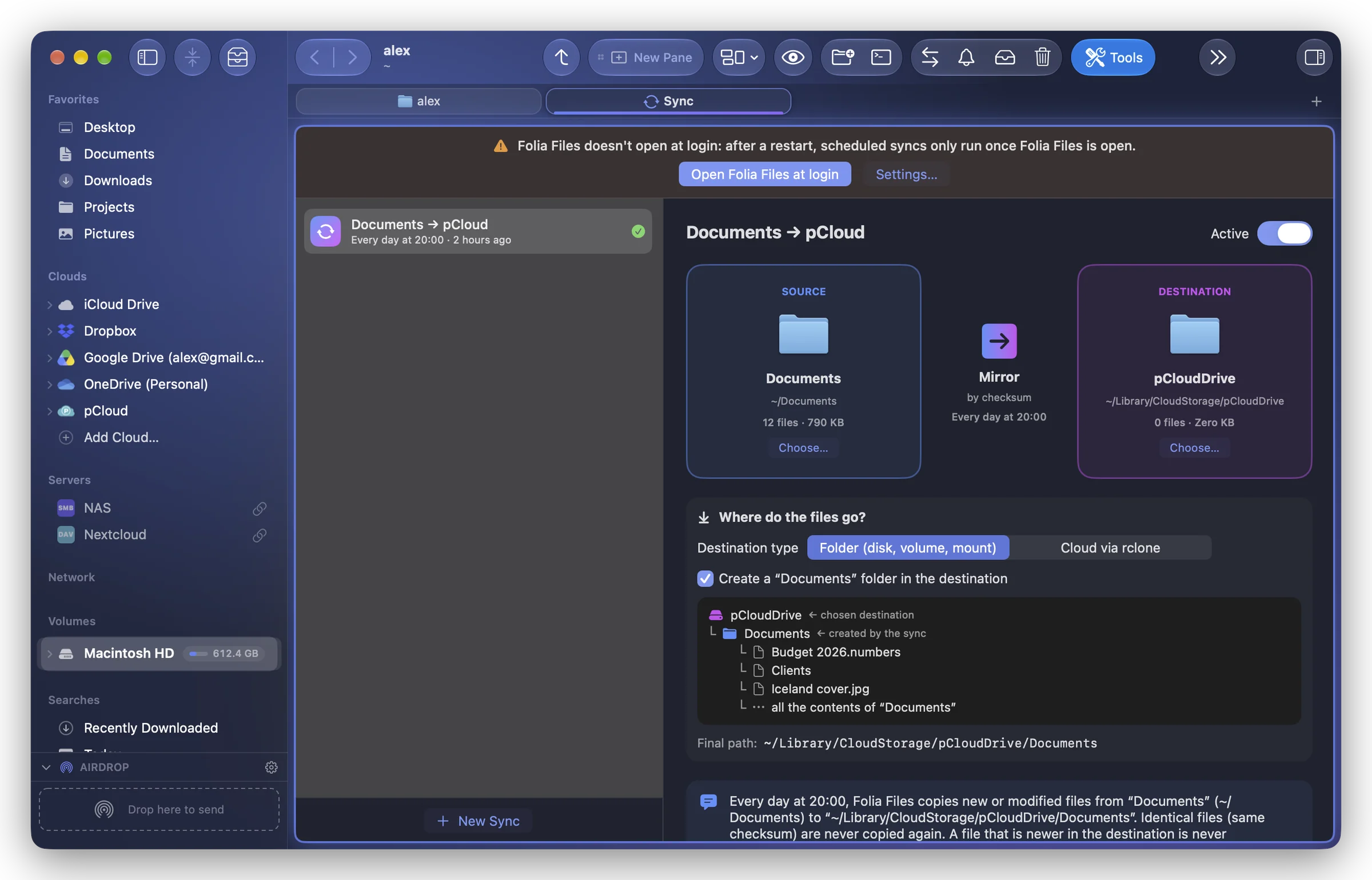
Tools › Sync… ⇧⌘Y keeps a copy of a folder up to date somewhere else: another disk, a NAS, a mounted server or a cloud through rclone. Only what changed is copied. It's one-way: from the source to the destination.
Create a sync
- Click New Sync.
- Source: drag a folder there, or Choose….
- Destination: choose its Destination type:
- Folder (disk, volume, mount): any folder, on another disk, a NAS or a mounted connection;
- Cloud via rclone: one of your cloud accounts (Remote) and a Cloud folder in it.
- Choose the Settings (below), give it a Sync name, and click Sync Now the first time.
A sentence under the settings sums up what the sync will do, in plain words.
Settings
| Setting | Choices |
|---|---|
| Mode | Copy (additions and changes): new and modified files are copied; nothing is ever deleted from the destination. Mirror (identical destination): the destination becomes an exact copy; what disappeared from the source is removed from it. |
| Comparison | Size and Date (fast), like rsync; or Content Checksum (exact): files of the same size are compared by their SHA-256, so an identical file is never copied again even if its date changed (checksums are remembered). |
| Items removed or replaced in the destination | Move to Trash or Delete Permanently. In a cloud, they're set aside in a .arbo-corbeille folder. |
| When | Manually, At Regular Intervals, Every Day at a time, or Whenever the Source Changes. |
| Exclusions | comma-separated patterns: node_modules, *.log, .git, Cache* |
A file that is newer in the destination is never overwritten.
Dry run first
Dry Run shows what would happen without touching anything: new, updated, identical, deleted files, conflicts, and the amount to transfer. For a cloud, rclone gives the number of files to copy and delete.
Safety
- A mirror sync is refused if the source is empty while the destination isn't, if the source's disk is missing, or if the destination is the top of a cloud.
- The first time a mirror would delete files in a destination, you're asked, with the real number of files.
- If more than half of the destination's files would be deleted, you're warned; a scheduled sync that would delete that much is skipped.
- If anything can't be read, nothing is deleted.
Scheduled syncs
Automatic syncs start after a first sync you run yourself, and run while Folia Files is open (even with no window). If Folia Files doesn't open at login, a banner says so: after a restart, scheduled syncs only run once Folia Files is open (see Launching at login).
History lists each run. The menu bar's Folia Files menu lists your syncs too: click one to sync now.