
Batch Rename
Rename many files at once with chained rules (replace, add text, number, case, date, clean up, extension, template), a live preview, and undo.
The Mac App Store edition is coming soon. The website edition has everything. Compare the editions
Batch Rename renames dozens or thousands of files in one go. You build a short list of rules, see every new name before anything changes, and undo it all with ⌘Z if you change your mind.

Open it
- Select several items and choose File › Rename, or Rename in the context menu: with more than one item, it opens Batch Rename with them.
- Or choose File › Batch Rename…, or Tools › Batch Rename… (⌘⇧R).
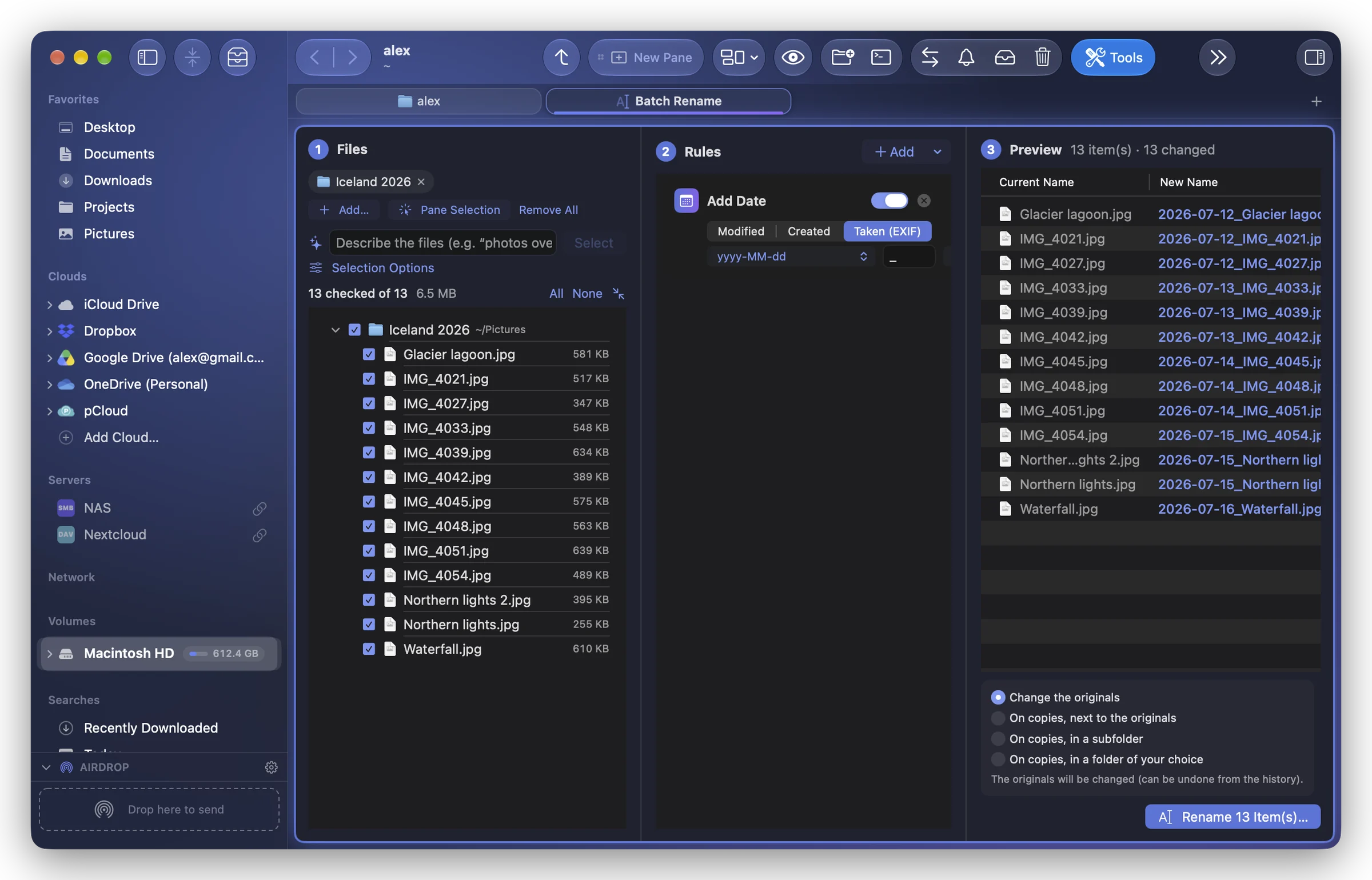
The tool opens in a tab of the window. On its left, the files: drop folders or files there, click Add…, or Pane Selection to take what is selected in the active pane. Selection Options describe which files of the folders to take (subfolders, kinds, extensions, name, criteria).
Build the rules
Click Add to add a rule. Rules apply in order, each one to the result of the one before; a switch turns a rule off without removing it.
| Rule | What it does |
|---|---|
| Replace | Replaces text (Find, Replace with). Regular expression ($1…) and Match case are options. |
| Add Text | Adds text at the beginning or at the end. |
| Number | Adds a number: start, step, number of digits, separator, at the beginning or the end. |
| Case | lowercase, UPPERCASE, First letter or Each Word. |
| Add Date | The date the file was Modified, Created or Taken (EXIF), in the format you choose. |
| Remove Characters | Removes a number of characters at the start and at the end of the name. |
| Clean Up | Turns spaces into another character, with Remove accents and Remove symbols. |
| Extension | A new extension (empty keeps it), or the extension in lowercase. |
| New Name (Template) | A whole new name from tokens: {name} {n} {date} {parent} {ext}. |
Check the preview
The Preview lists each file's Current Name and New Name. Problems are shown on the row and that file is left out:
- Empty or hidden name;
- Same name as another item of the list;
- Already exists in the folder;
- Another selected item keeps this name.
Rename, or make renamed copies
Above the button, choose where the change goes:
- Change the originals (can be undone from the history);
- On copies, next to the originals;
- On copies, in a subfolder (named Copies unless you change it);
- On copies, in a folder of your choice.
Then click Rename n item(s)… (or Create Copies…), ⌘↩. A last summary shows the changes before they are made.
Related
- One name at a time: Rename files and folders.
- Names written from the contents of photos, scans and PDFs: Suggested names.